


Looking for a quick guide on how to change screen lock time on iPhone? In just 60 seconds, we will explain how to turn off screen lock or change the time.
Download the ScreenFox app to improve your focus and productivity.
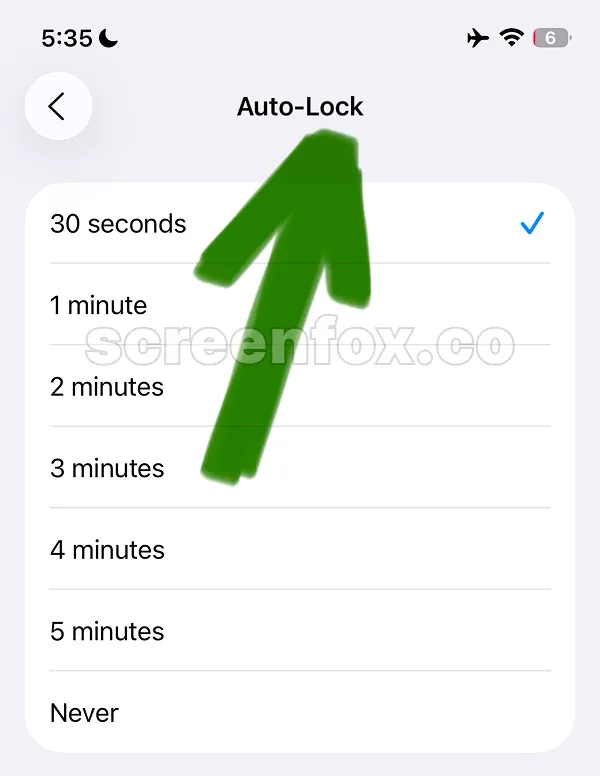
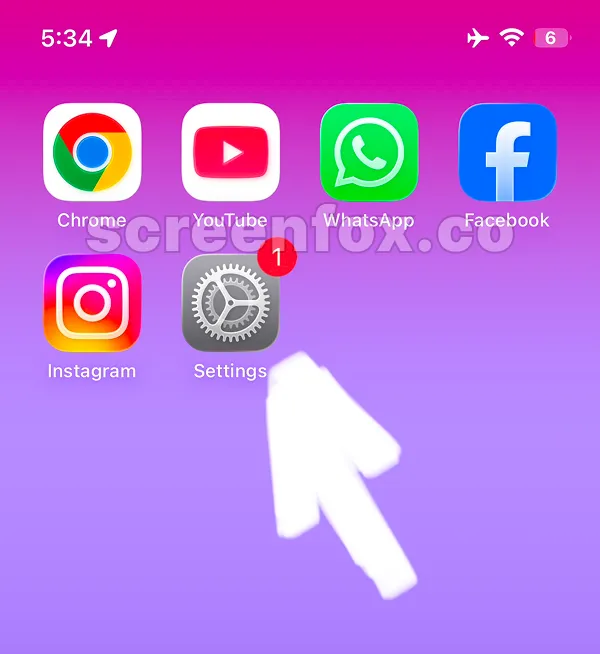
Tap the iPhone Settings app on the Home Screen.
If you prefer the video guide over the text option, just press the button and follow the same guide in video format. The choice is yours!
VIDEO_ADD_TOMORROW
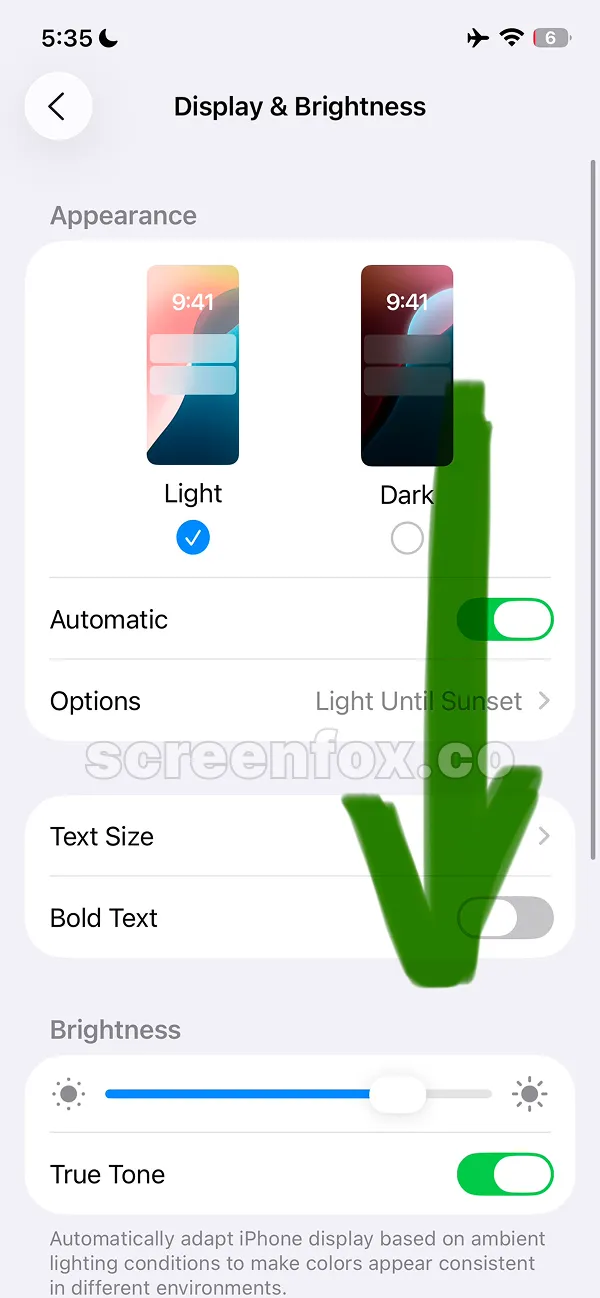
There are a lot of different blocks in the iPhone Settings app. Just scroll and find the Display & Brightness option. It should be in the same settings block as General settings.

There are a lot of settings in the Display & Brightness screen, just keep scrolling until you find Auto-Lock.
Keep reading our other guides to learn how to lock apps on iPhone, how to block websites, or how to block any apps.

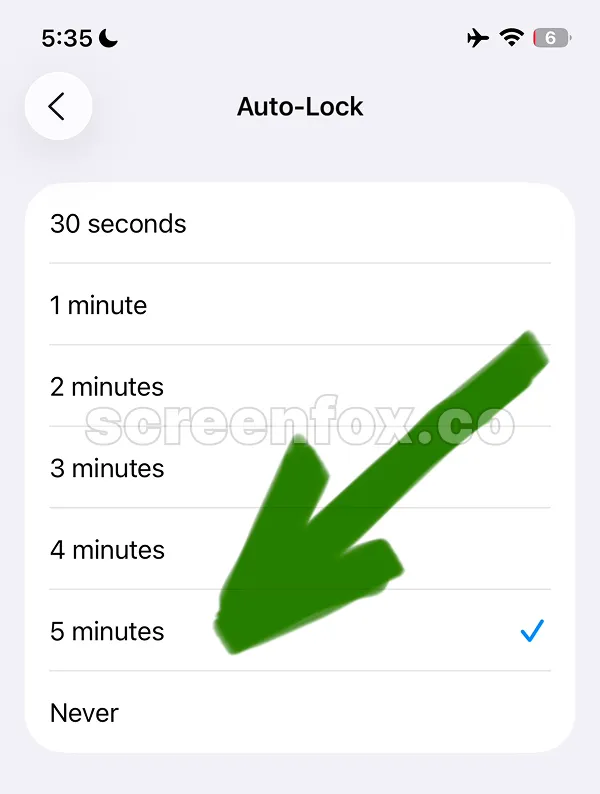
Now you can choose one of several options. This will determine after what period of inactivity your iPhone will automatically lock the screen. Choose Never if you need to keep the screen always on. Keep in mind that the Never option will drain your phone battery very fast. Now you know how to change screen lock time on iPhone.
Download the ScreenFox app for FREE to block apps and stay focused on your tasks.
It is really difficult to find the Lock Time setting on iPhone. To make it easier, just open Settings, tap Search at the bottom of the screen, and type "Auto-Lock." Then select the Auto-Lock result — this shortcut will help you quickly change the Lock Time in iPhone settings.