


This guide shows you how to block apps on iPhone using Apple's native Screen Time feature, the easiest way to block apps and manage your device time. Our detailed step-by-step instructions with screenshots will help you take control of your device usage. Download the ScreenFox app for FREE to block apps more effectively.
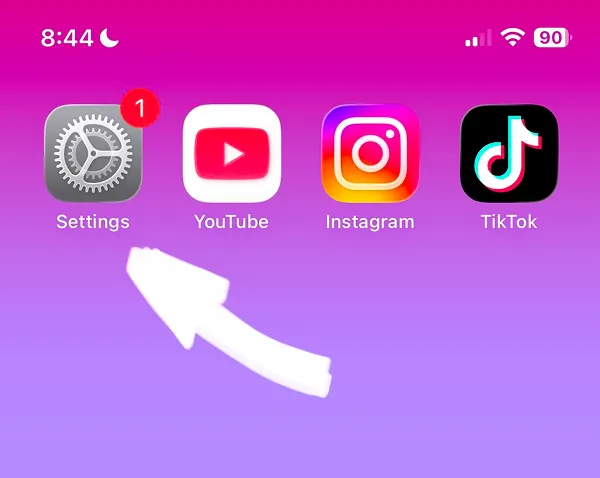
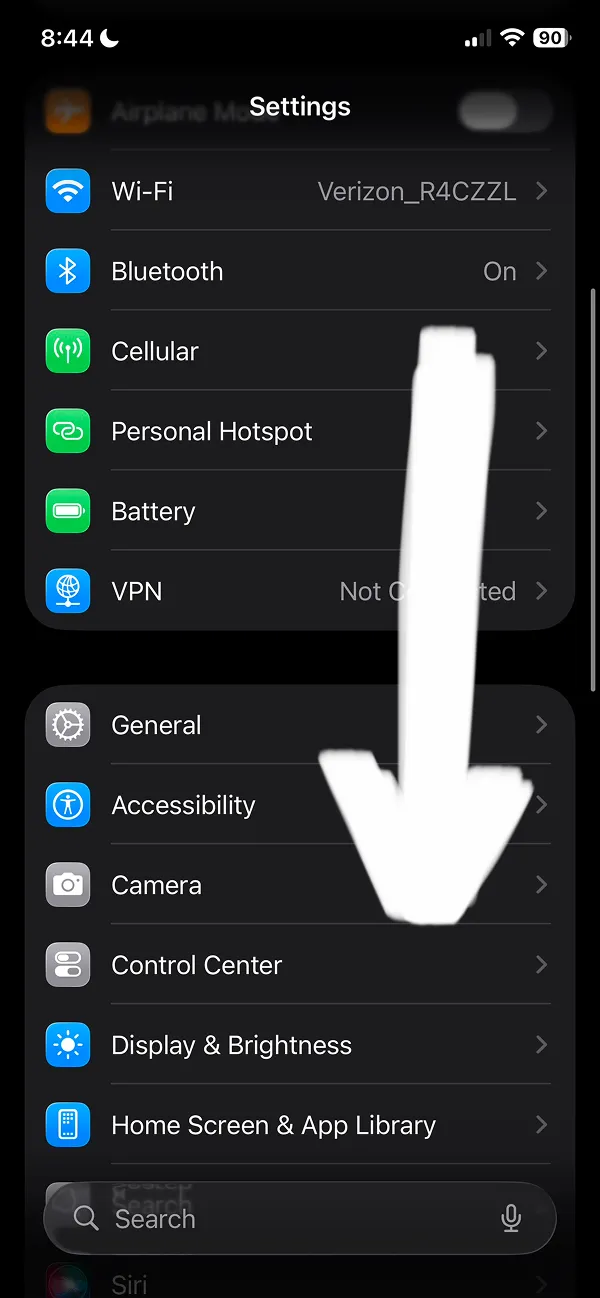
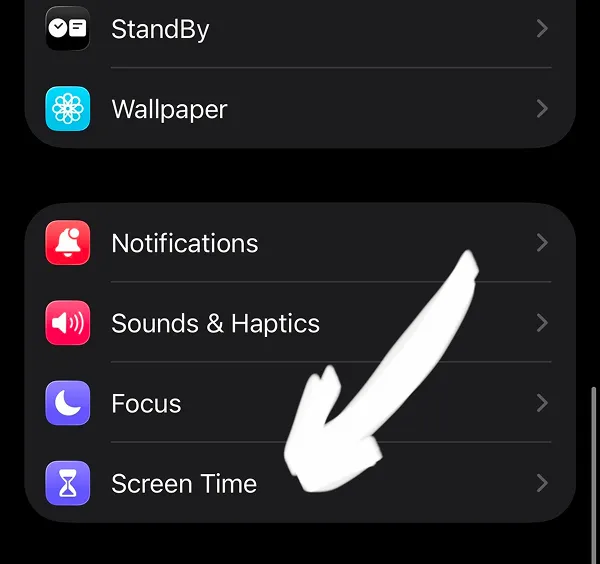
Screen Time can be challenging to locate on your Settings page. Simply scroll down the settings menu and you'll find it grouped together with notification preferences and other system controls.
The Screen Time feature lets you select which apps to block and set daily usage limits for each app.The Screen Time feature's App Limits tool lets you block apps on iPhone and set daily usage limits for each app you want to control.
Need a faster explanation? Play the 2-minute video tutorial or keep reading the illustrated step-by-step guide below.
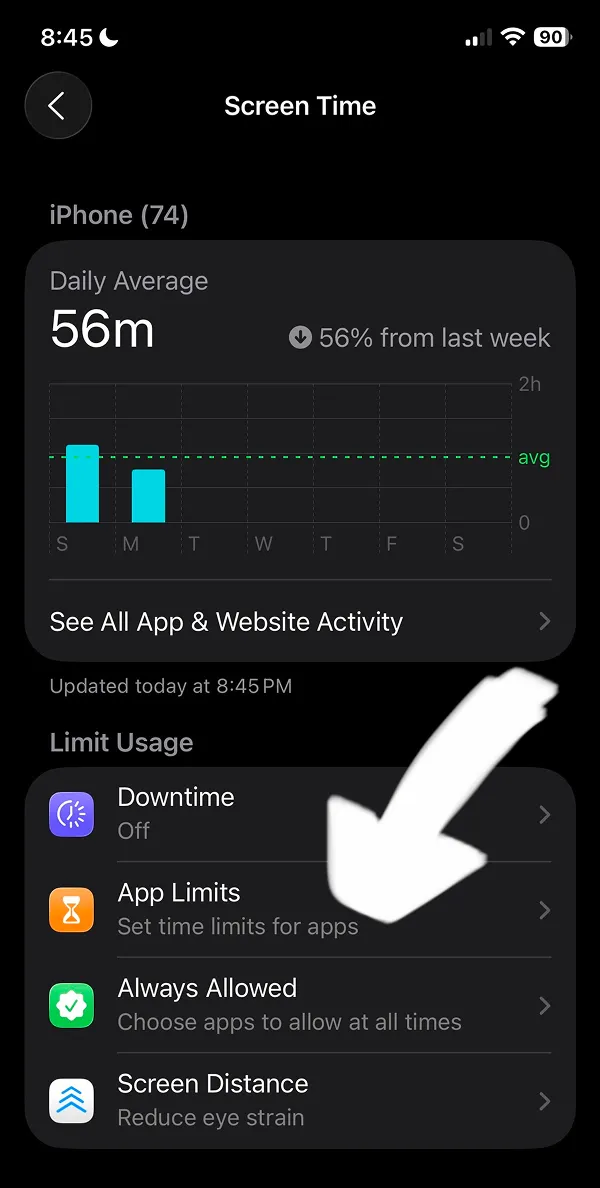
Navigate to your Screen Time screen and tap the App Limits feature, identifiable by its distinctive orange icon.
Selecting this option will display the Choose Apps interface with your complete list of installed iPhone applications.
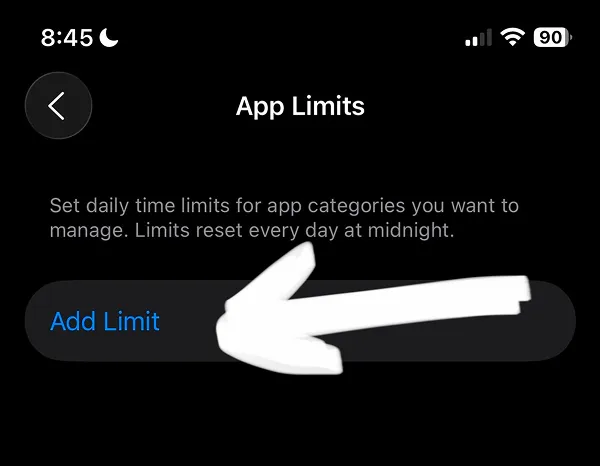
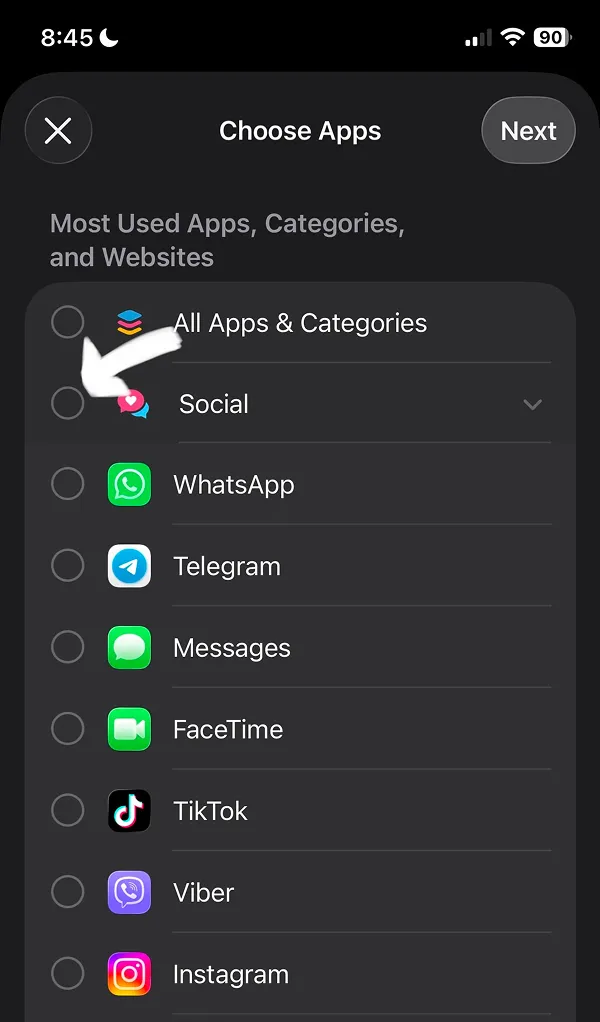
You have two easy ways to block apps on iPhone and choose which apps you want to block:
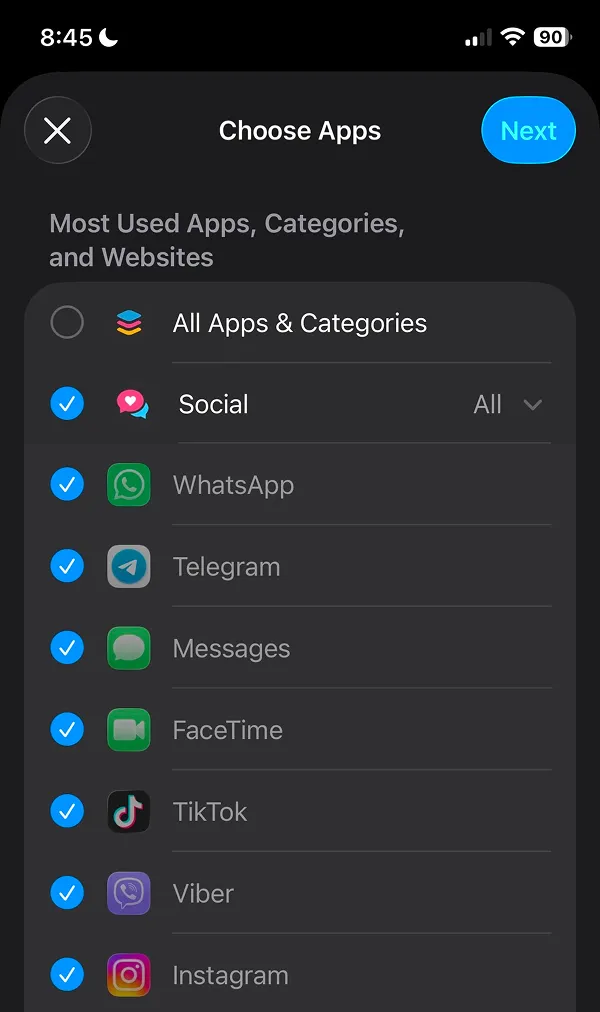
Choose from pre-organized app categories, and iPhone automatically selects all apps within that category. For example, if you want to block apps like Instagram and others in the Social category, simply tap it and all social apps are selected at once.
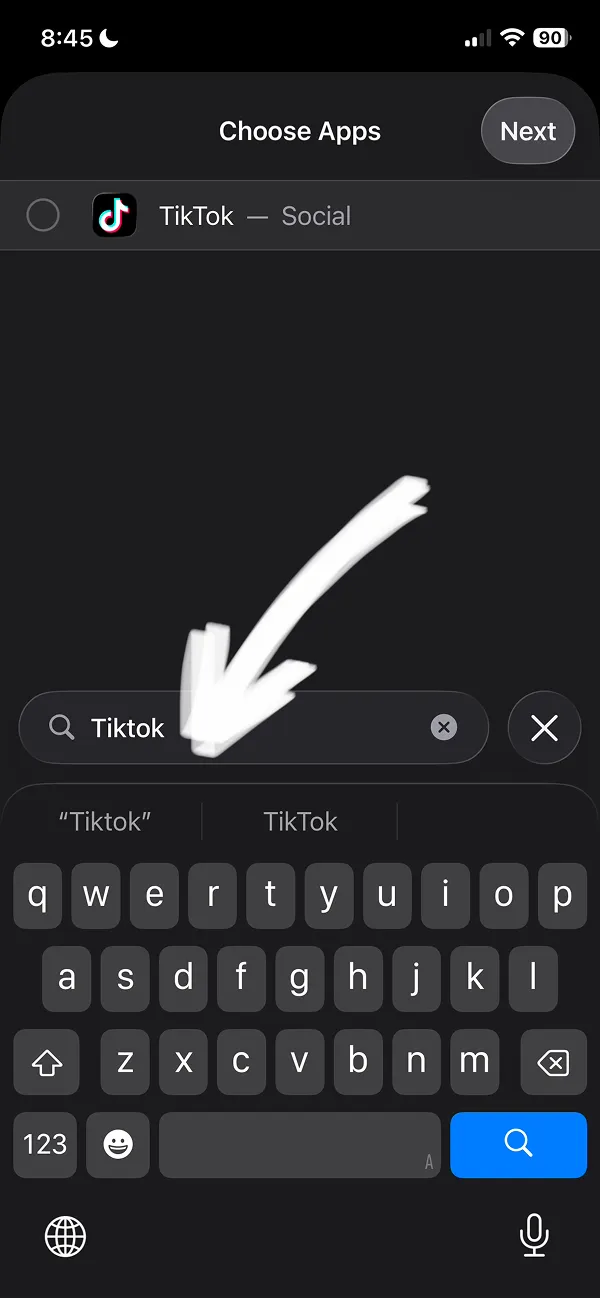
If you prefer to block individual apps, use the search function to find exactly what you need. Just type the app name—whether it's Instagram, a gaming app, or any other application—and select it from the results.
Tip: iPhone's built-in Screen Time feature is easy to bypass. Download the ScreenFox app to create stronger app blocks that are much harder to disable—and take back control of your focus and productivity.
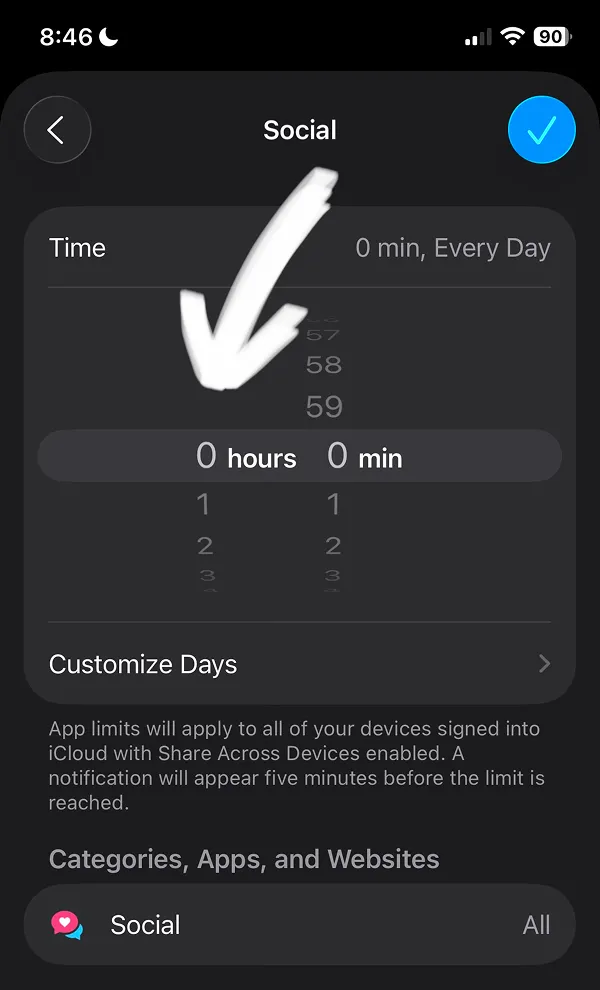
To effectively block apps, set the time limit to zero. Simply adjust the hours and minutes using the scroll interface, just like you would when setting a timer.
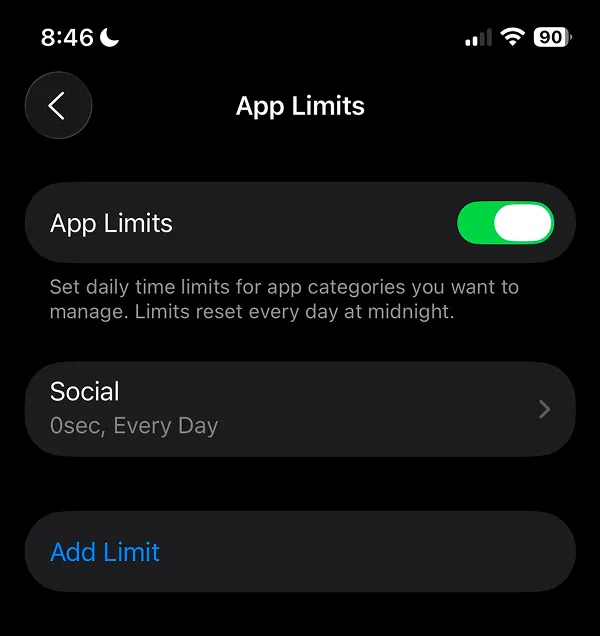
When you see a green toggle next to App Limits, your block is activated. Here's how it works on your phone. Now you know how to block apps on iPhone in just minutes.
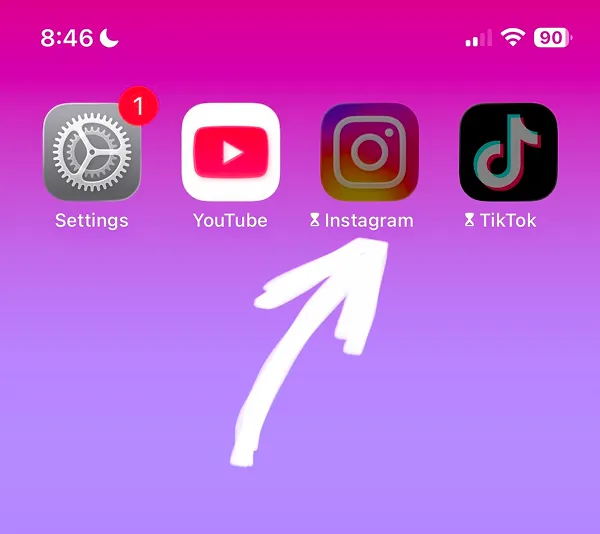
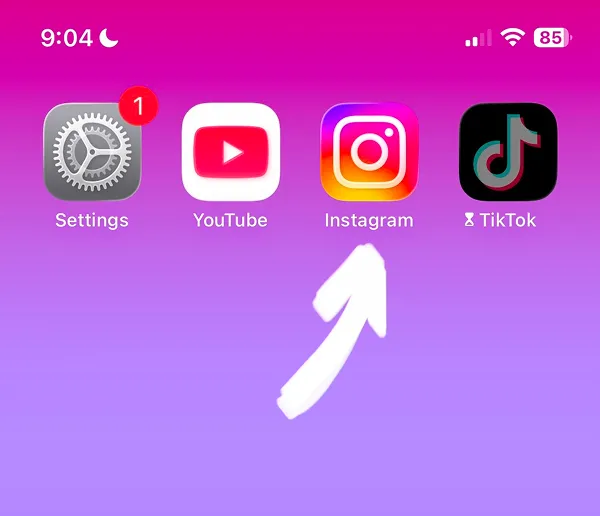
Once you've blocked specific apps on iPhone, you'll notice the selected app icons appear faded with a timer icon displayed next to the app name. Try opening one of the blocked apps.
When you attempt to open a blocked app, a Time Limit notification appears. Tap OK to close it. Unfortunately, it's too easy to dismiss this restriction by tapping the "Ignore Limit" button—which is why many people turn to dedicated app blocking solutions like those available in productivity apps.
Download the ScreenFox app for free. ScreenFox was designed to make app unblocking much more difficult—the core feature that helps you block apps more effectively and improve your focus and productivity.
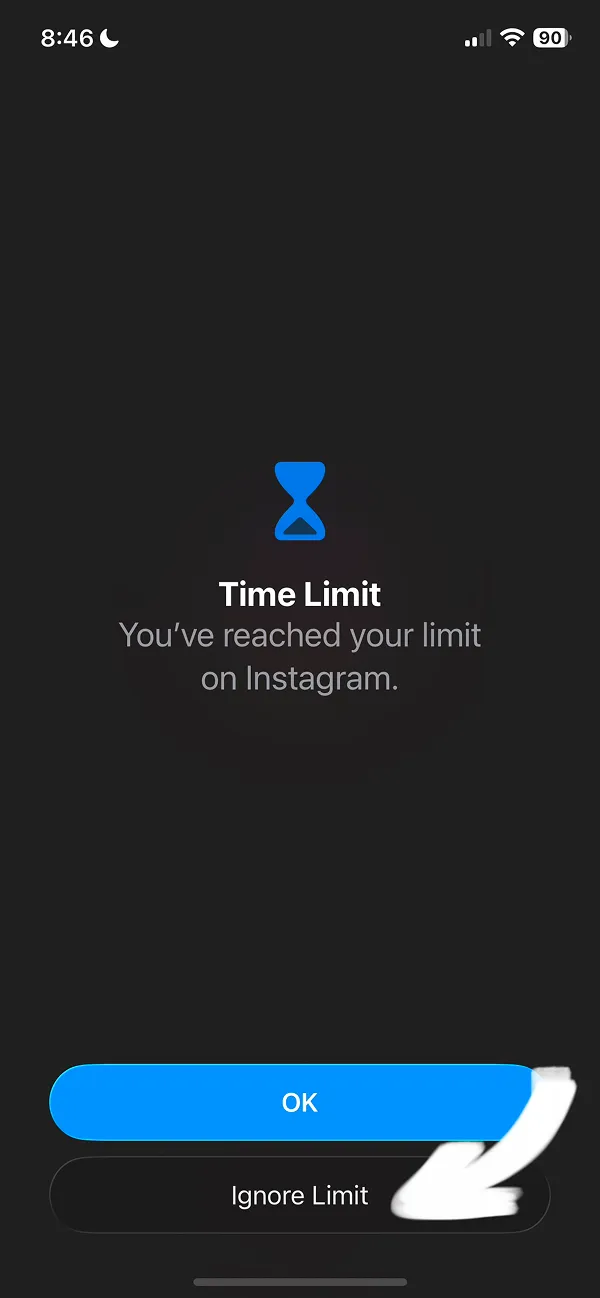
How can you disable app blocking? Simply tap "Ignore Limit for Today" to bypass your restrictions, or select a different time limit.

After you dismiss the Screen Time app limits, your blocked apps resume normal function and become accessible again.
Now that you understand how to block apps on iPhone, you can implement these steps immediately.
If you're looking for stronger restrictions, explore our guide on how to block social media on iPhone for specialized social app blocking strategies. Additionally, if you want to restrict web browsing, check out our article on how to block websites on iPhone to complement your app management approach.