

Looking for a way to lock apps on iPhone? Our easy-to-follow guide with images will help you lock apps using a built-in iOS feature. You can also download the ScreenFox app to improve your focus and productivity.
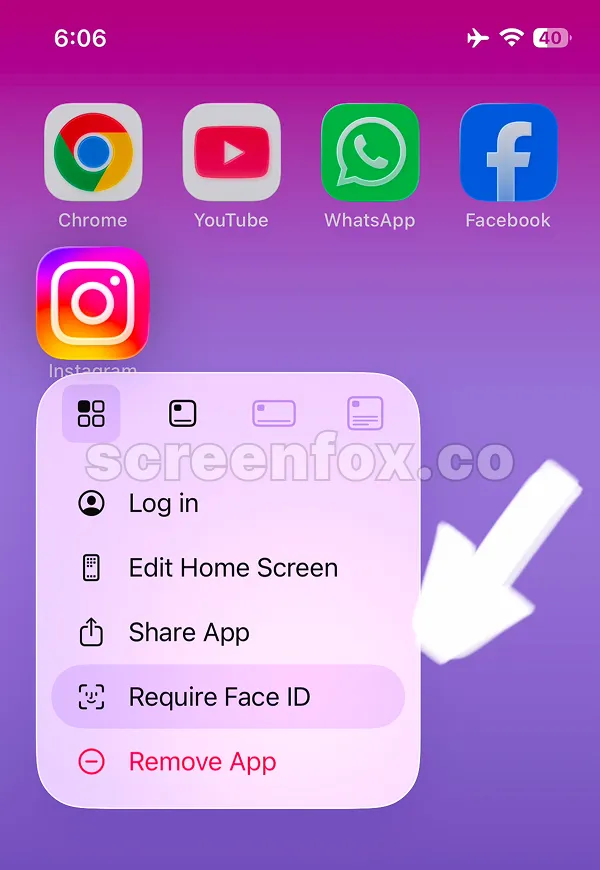
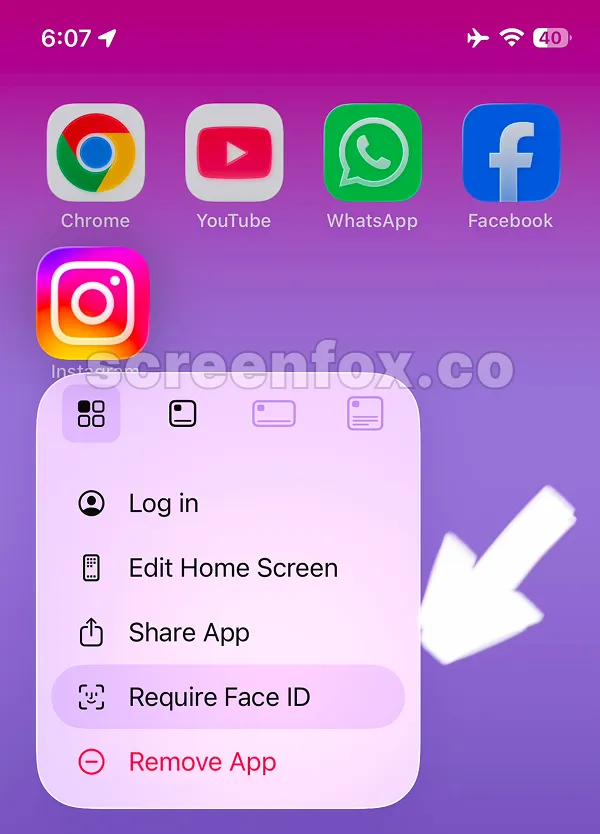
To open the quick actions menu, just tap the icon and hold it for a couple of seconds. The action menu will open. To lock an app, you need to choose the "Require Face ID" option. This is not obvious, but it works.
If you prefer to watch this guide and learn about more details, just play the video. The information in the video guide is the same. Keep reading the text guide or watch our 2-minute quick setup video.
Select the Require Face ID option to lock the app. After you select this feature, you will need to confirm the action with Face ID.
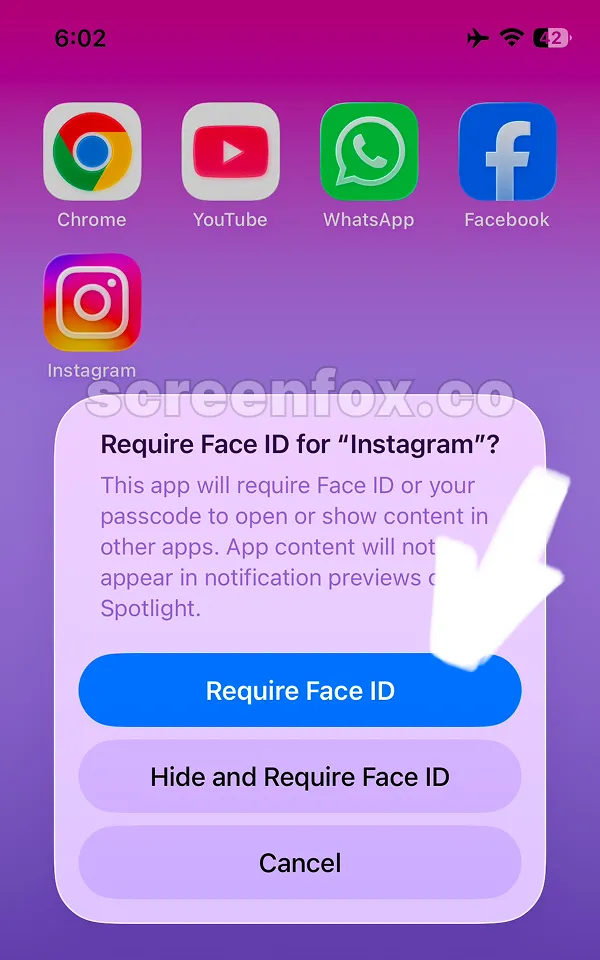
Pro tip: if you do not see the "Require Face ID" option, you need to set up Face ID first on your iPhone.
Now you know how to lock apps on iPhone using a built-in iOS feature. Each time the app is opened, Face ID authorization will be required. It works like an app password. Keep reading to learn how to unlock apps. You can also read our other guides to learn how to block any website on iPhone or how to block social media on iPhone.

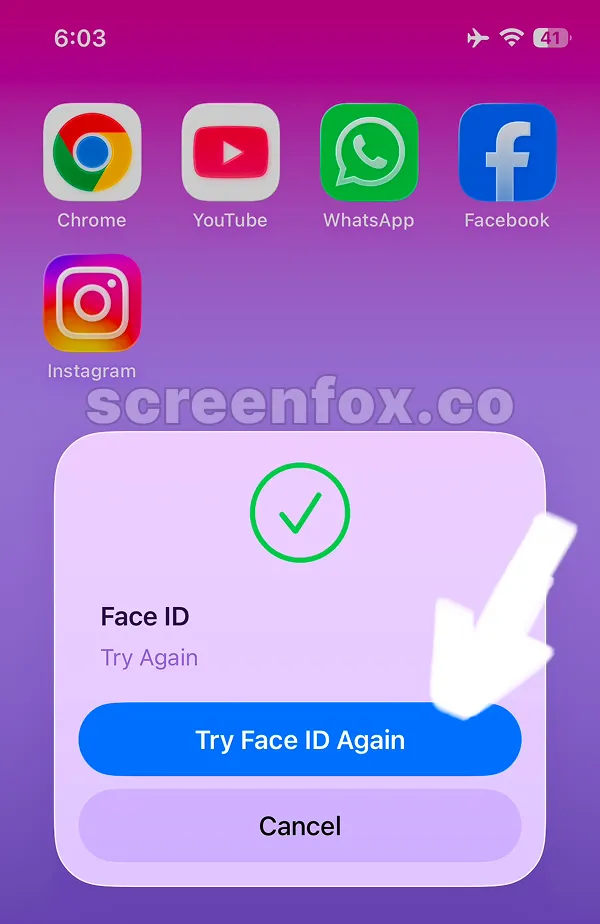
If someone tries to open the app, the Face ID modal will be shown with the option to try again. Just tap the "Try Face ID Again" button to confirm the app opening.
If you are trying to improve your focus, this method may not be effective because it takes literally two seconds to unblock apps. Download the ScreenFox app, it was built specifically to make stopping app locks much more difficult and help you improve your focus and save time.
If you changed your mind and decided to stop locking your app, just open the quick actions menu again by tapping the icon for three seconds and select "Don't Require Face ID."
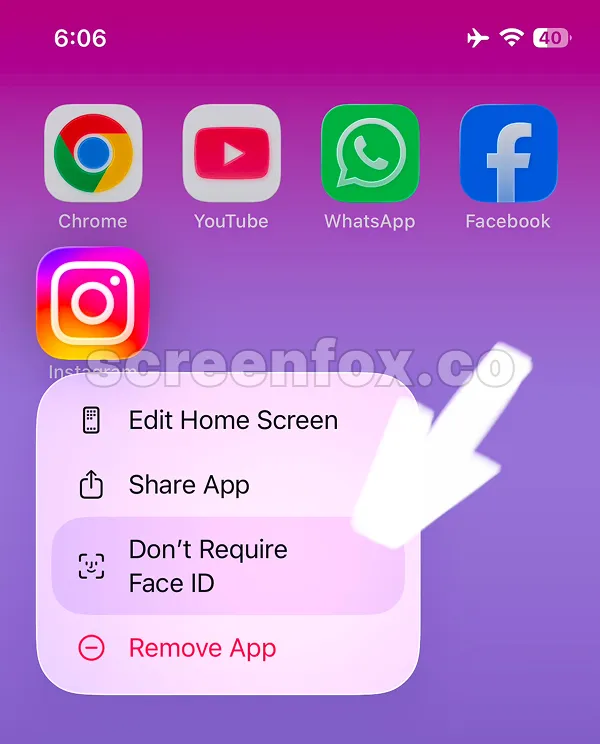
After you select "Don't Require Face ID," the option "Require Face ID" will be shown again. Now your app will be opened without the password.
Download ScreenFox today to lock apps on iPhone and improve your focus.