


This guide shows you how to turn on grayscale on iPhone using Apple's built-in Color Filters feature. Grayscale removes color from your display, helping you focus better and reduce digital distractions. Our step-by-step instructions with screenshots will help you enable this feature in minutes. Download the ScreenFox app for FREE to reduce screen distractions even more effectively.

Start by opening your Settings app from your home screen. This is where all your iPhone customization options are located, including the feature you need to turn on grayscale.
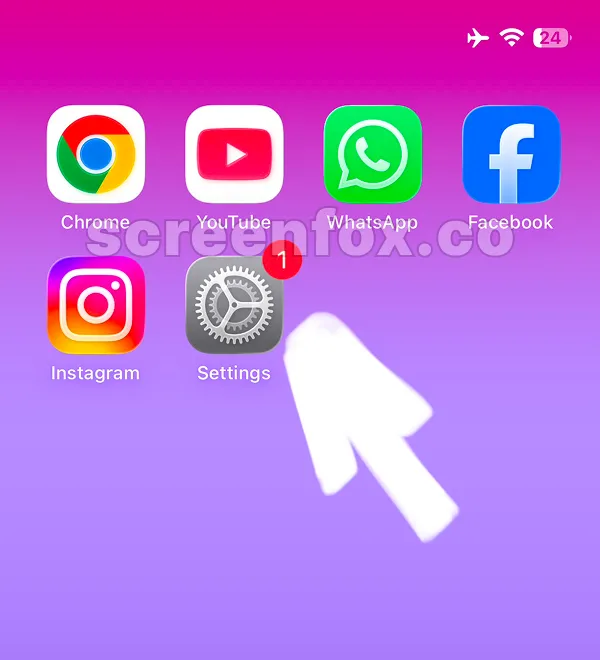
Need a faster explanation? Play the 2-minute video tutorial or keep reading the illustrated step-by-step guide below.
Scroll down through the Settings menu and you'll find the Accessibility section. This is where Apple keeps display and vision features that help you control how your phone looks and feels.
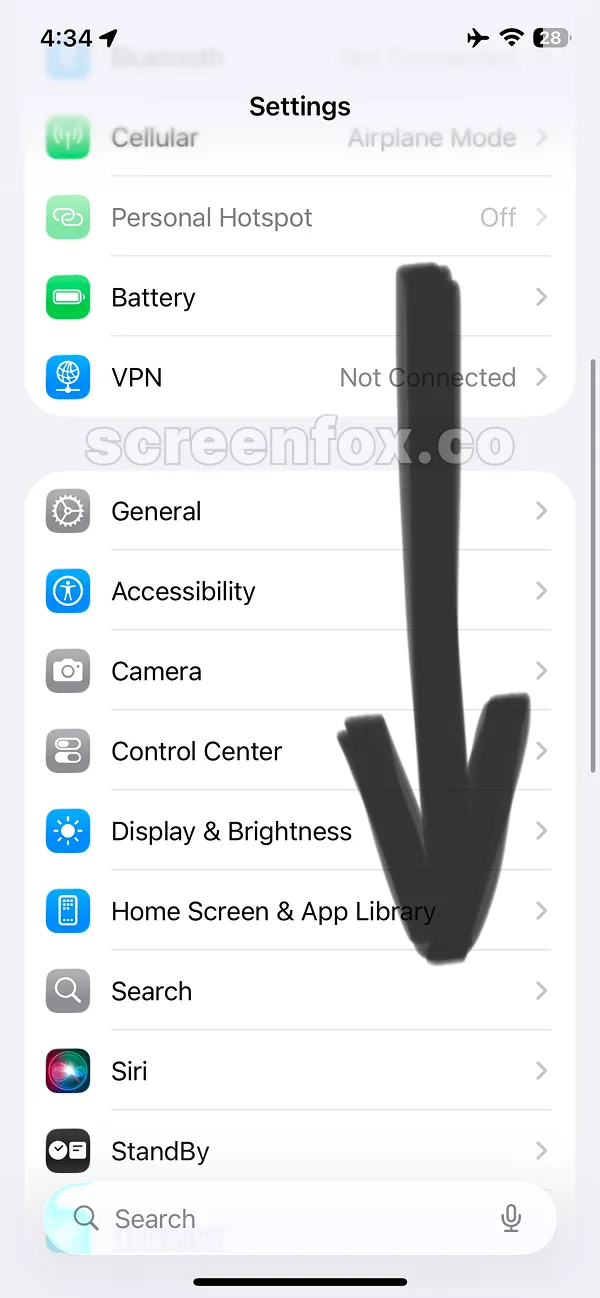
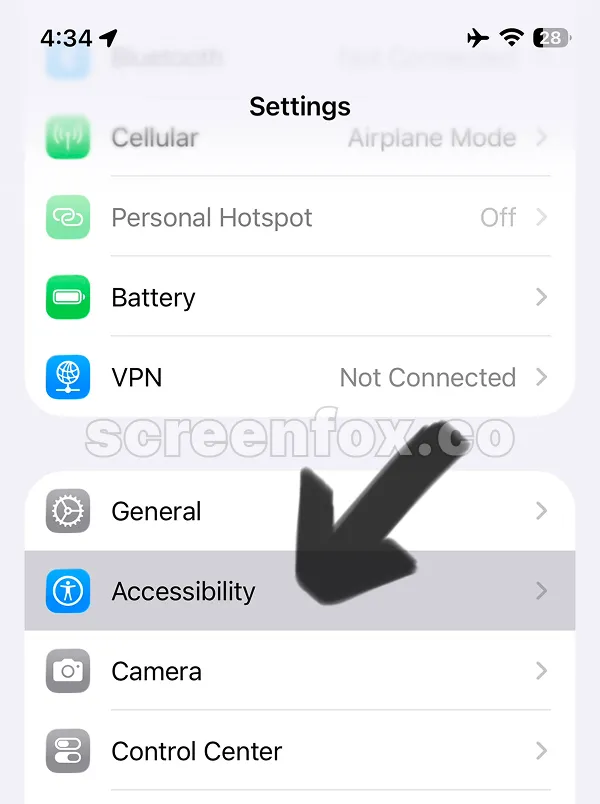
Tap the Accessibility option after the General menu.
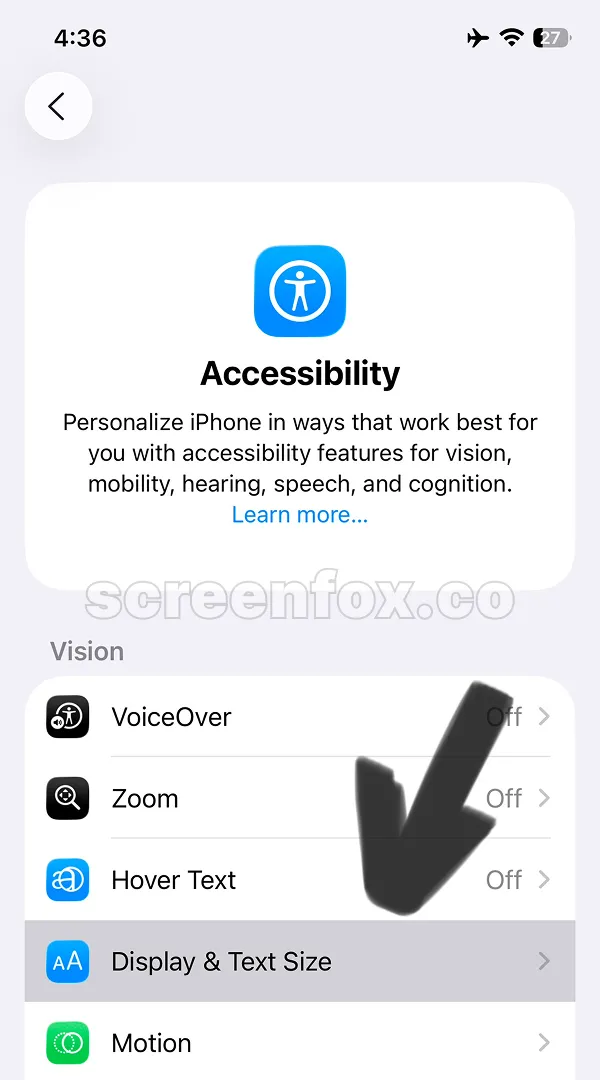
Once you're in Accessibility, look for Display & Text Size. Tap it to open the display customization options where grayscale is located.
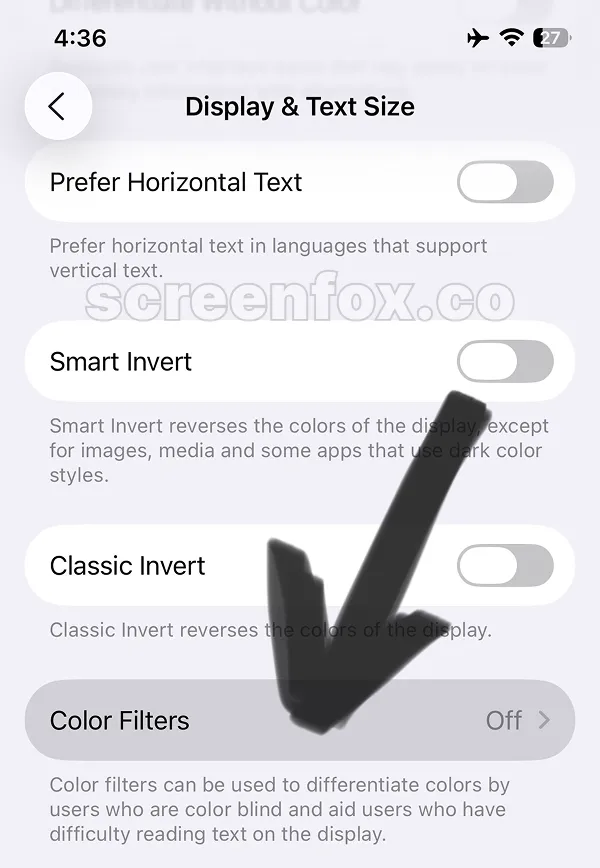
You need to scroll the page and Navigate to Color Filters, which you'll find in the Display & Text Size screen. This feature lets you adjust how colors appear on your iPhone screen.
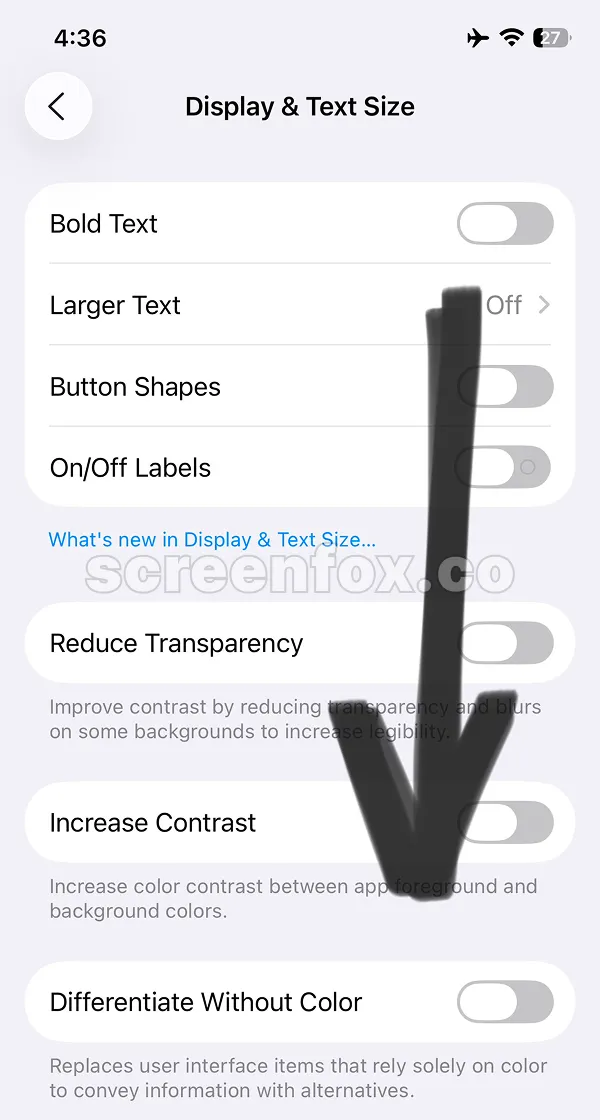
Just scroll the page ant tap the Color Filters menu.
When you open Color Filters, you'll see several options available. Simply tap Grayscale to remove all color from your display. Your phone will instantly switch to black and white.
Tip: iPhone's built-in grayscale feature is great for reducing visual distractions. Download the ScreenFox app to create a complete digital wellness routine—combining grayscale with stronger focus controls to take back your attention and productivity.
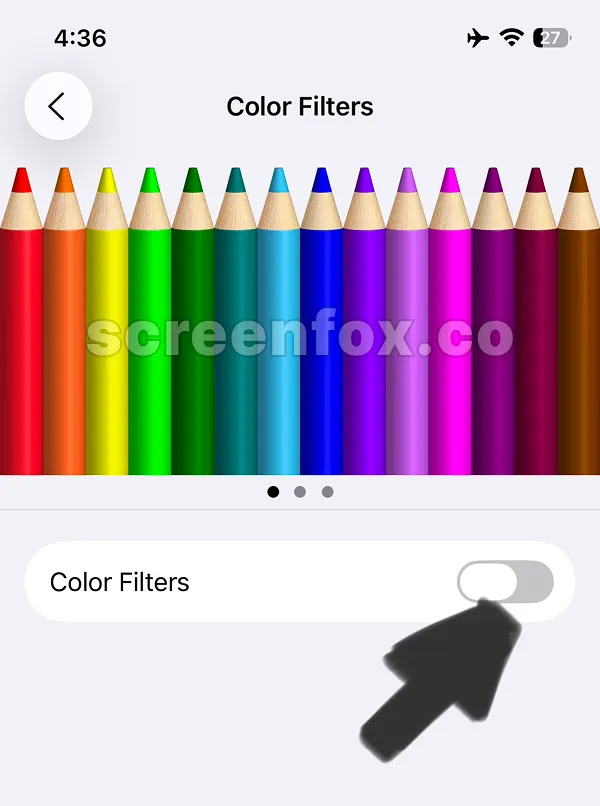
Option 1: Keep Grayscale Always On
Enable grayscale and leave it on permanently. This works great if you want to reduce distractions all day long. Simply select grayscale and it stays active until you turn it off.
Option 2: Add Grayscale to Control Center (our recommended option to keep focus)
For more flexibility, add the Color Filters shortcut to your Control Center. This way you can toggle grayscale on and off quickly without opening Settings each time.
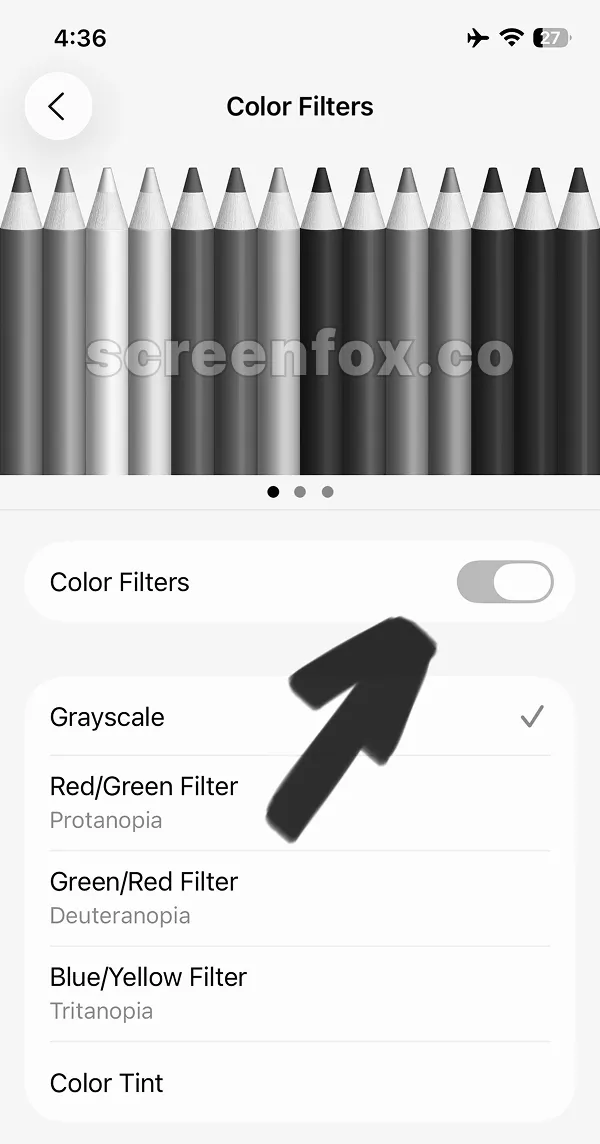
When grayscale is enabled, your entire iPhone display turns to black and white. You'll notice the change immediately on your home screen and in all your apps. To turn grayscale off, just tap the Color Filters toggle. Keep reading our guide to know how to turn on grayscale on iPhone in seconds using the Control Center shortcut.

Apps that normally use color to grab your attention now blend into the background. Social media, games, and other distracting apps become much less appealing when they lose their bright colors and visual effects.
Download the ScreenFox app for free. ScreenFox works alongside grayscale to give you complete control over your focus—helping you reduce distractions even further and build better digital habits.
You can add Color Filters to your Control Center for quick access. This lets you turn grayscale on and off without opening Settings.
Step 1 - Open Control Center
Press and hold anywhere on the Control Center screen to open customization mode.
Step 2 – Tap the Add a Control button at the bottom of the screen

Then in the Search Controls, type Color to find Color Filters and add it.
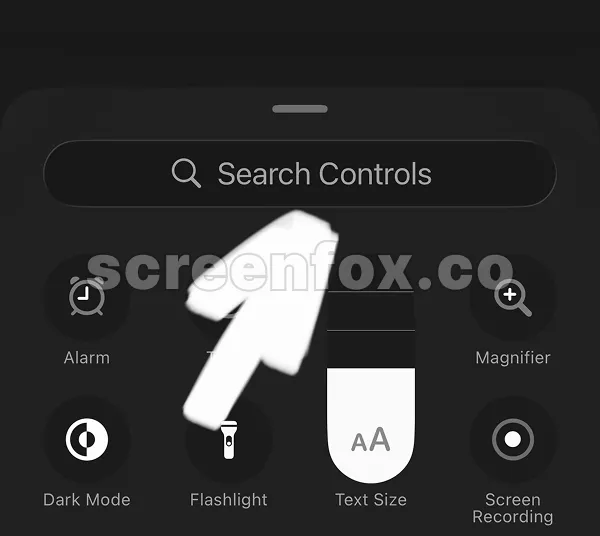
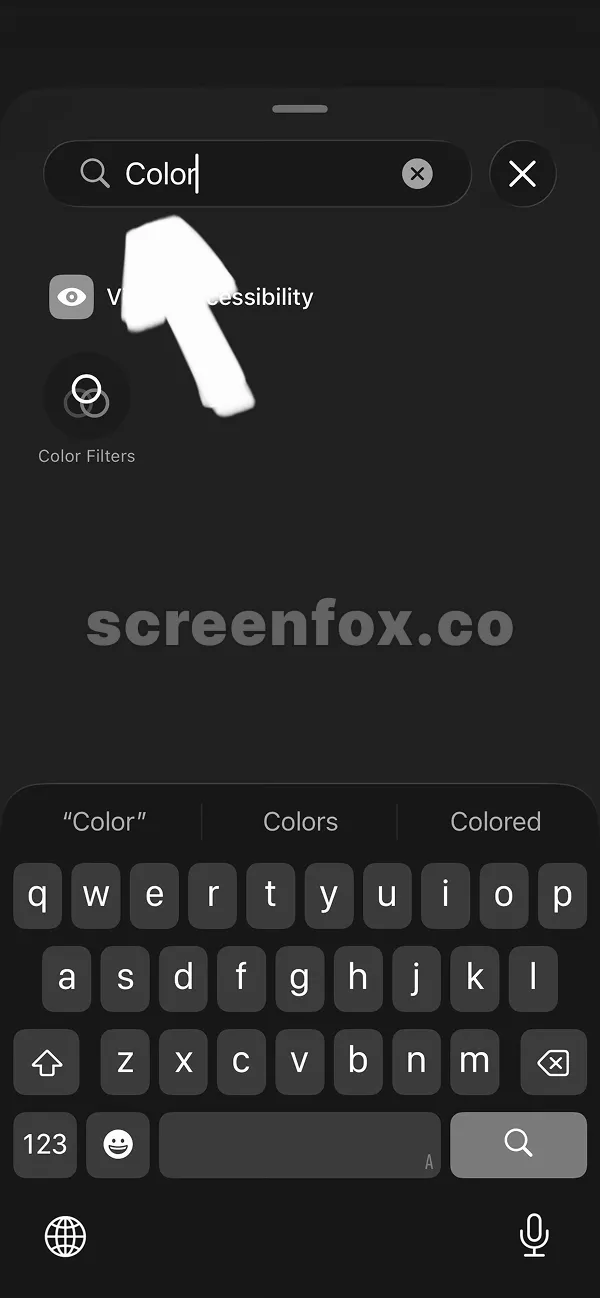
Once you've added it to Control Center, you can tap the Color Filters icon to switch between grayscale and full color instantly. This is perfect if you want grayscale during work hours and color the rest of the day.
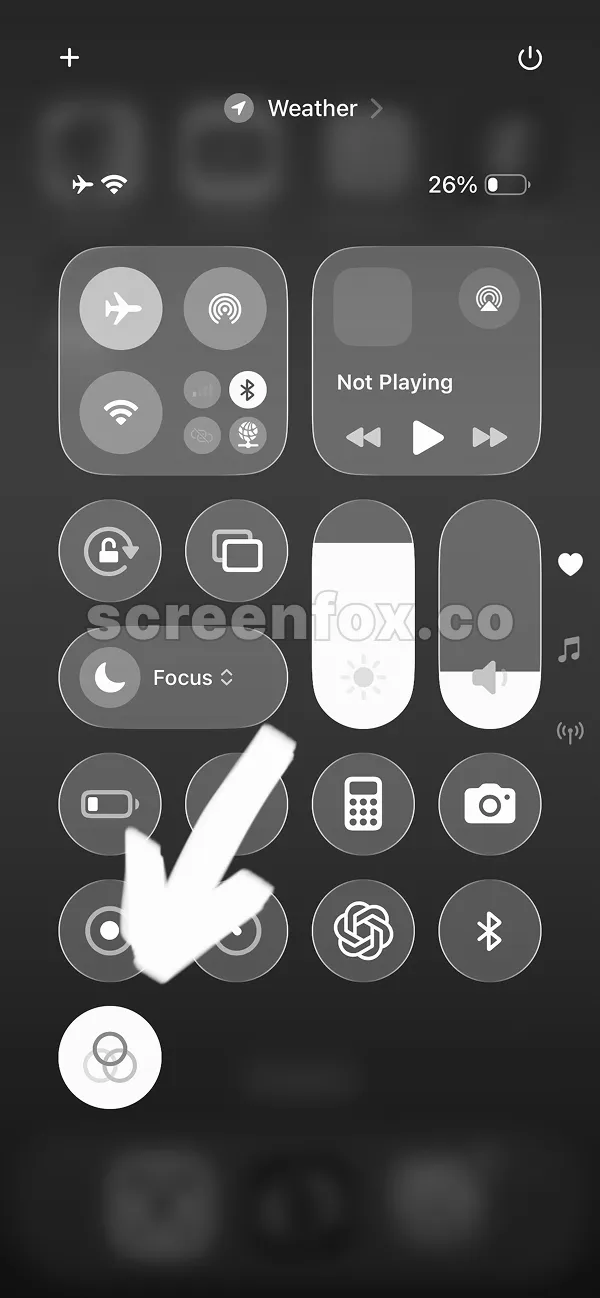
The difference is obvious once you enable grayscale. Your phone becomes less visually interesting, which reduces the urge to endlessly scroll. Colors make apps feel rewarding—removing them makes them feel neutral and less addictive.
Now that you know how to turn on grayscale on iPhone, you can enable it right away to reduce digital distractions.
Download the ScreenFox app for free. Combine grayscale with ScreenFox's focus controls to eliminate distractions completely—and build stronger digital habits that stick.
For more focus strategies, explore our guides on how to turn off Do Not Disturb on iPhone and how to lock apps on iPhone to strengthen your digital wellness routine.