
You need to quickly learn How to Turn Off Do Not Disturb? Just follow our quick guide and in two minutes your notifications will work again on iPhone.
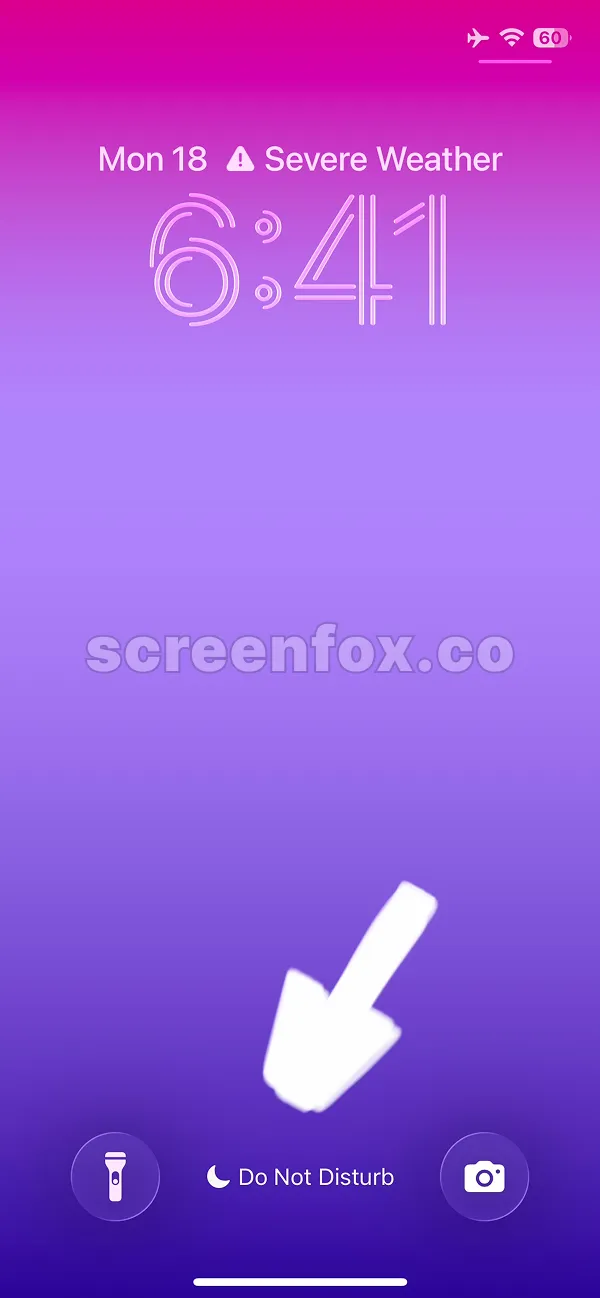
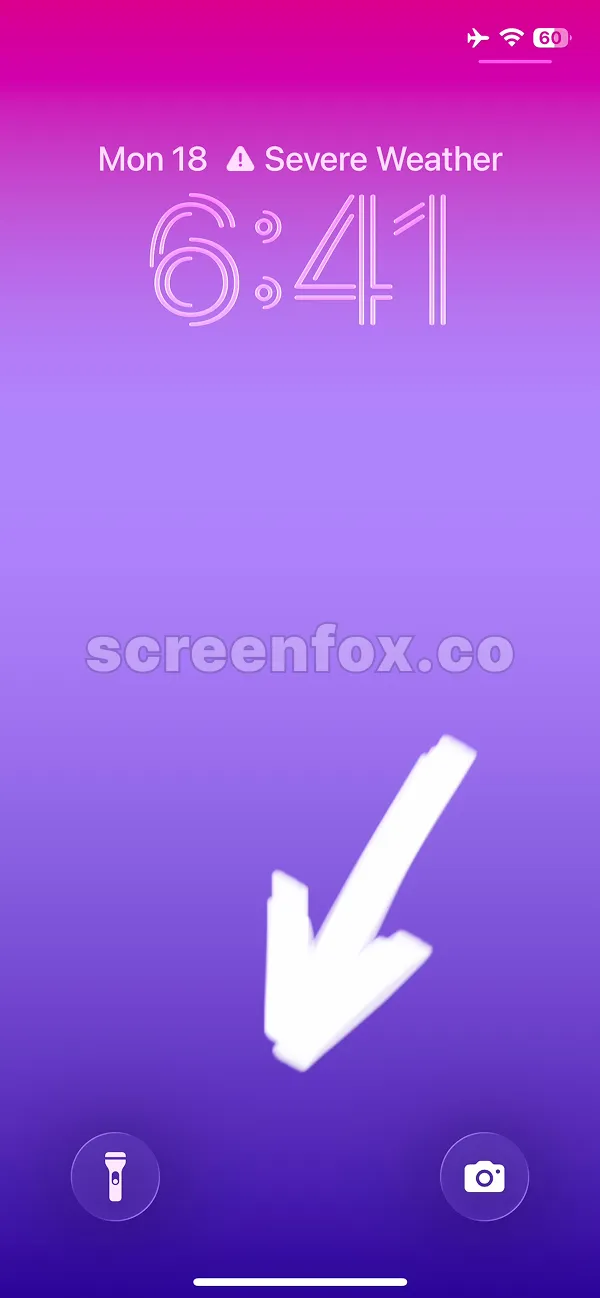
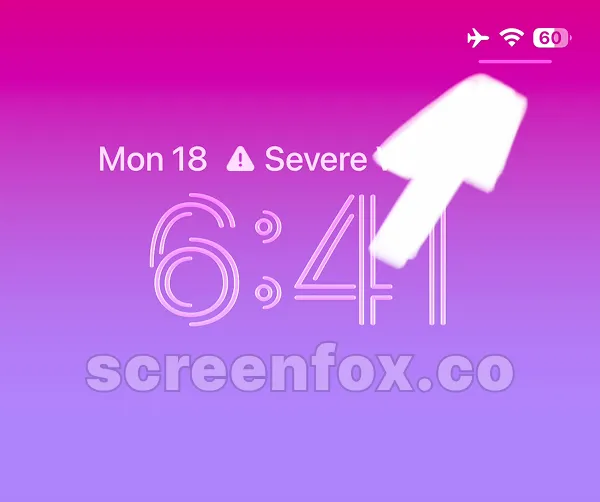
To open control center just follow the arrow on the screen and swipe the right upper corner of the screen, where the battery indicator is located.
You can watch our easy to follow video guide to learn about the same iPhone setting and to learn how to change schedule if it is set up. Play video or keep reading our text guide.
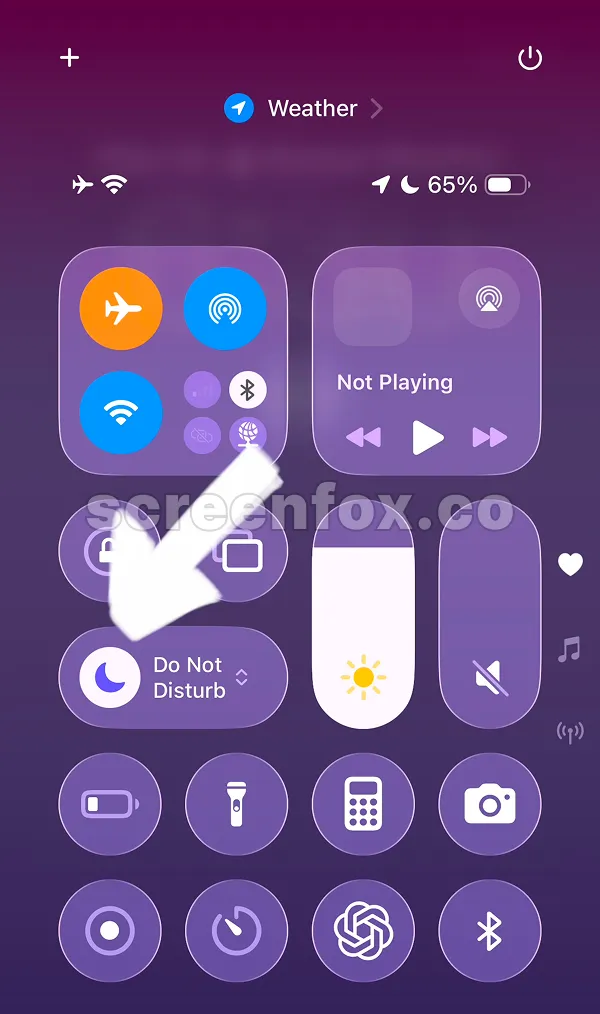
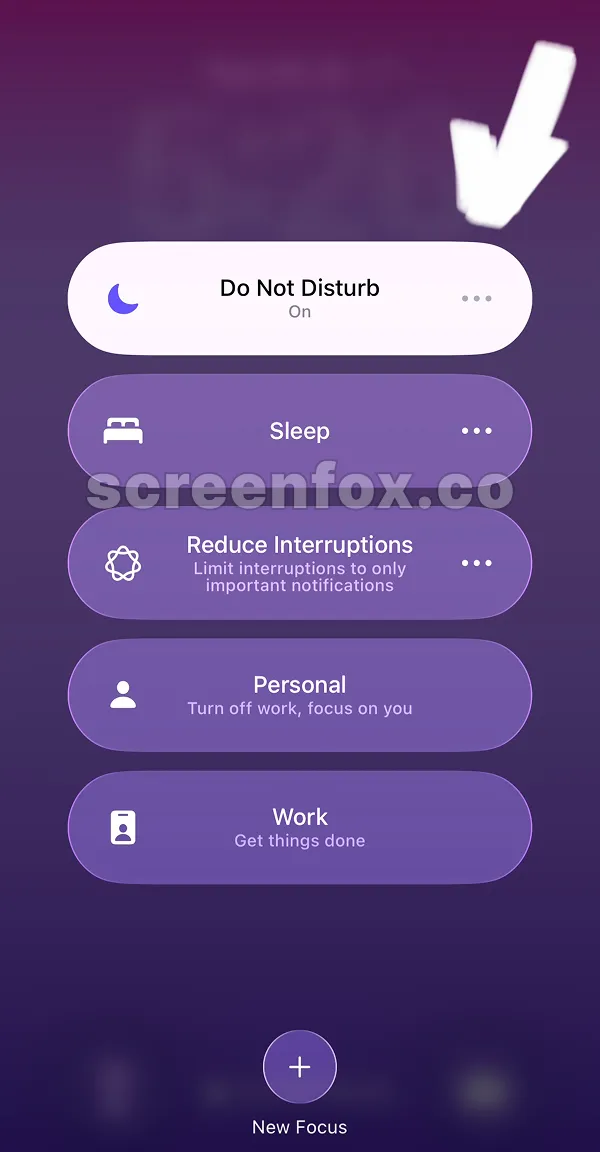
To turn off do not disturb mode just tap the purple moon icon. Important: do not tap the Do Not Disturb text, it is settings, keep reading to know how it works
That is that simple! If you see Focus word then the mode is off. Now you know how to Turn Off Do Not Disturb on your iPhone in seconds. When this focus mode is off your notifications will start working as usual.
Pro tip: you can change settings for the Focus modes. If you want an alternative option to keep focused and receive notifications download the ScreenFox app for free.
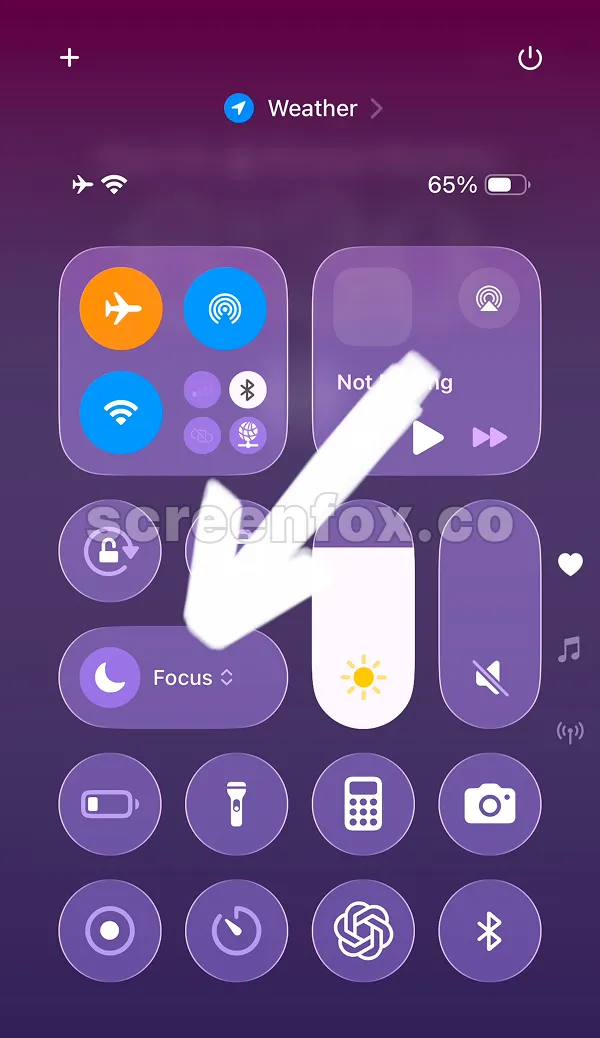
This focus mode can automatically be turned on by iPhone next day. To change this tap the Focus word shown on the previous screenshot by arrow. Tapping Focus will open the Focus settings screen. Then tap on the right on ... three dots, where the arrow shows. You can also read our other guides and learn how to turn off the sleep mode or how to block YouTube shorts to better focus.
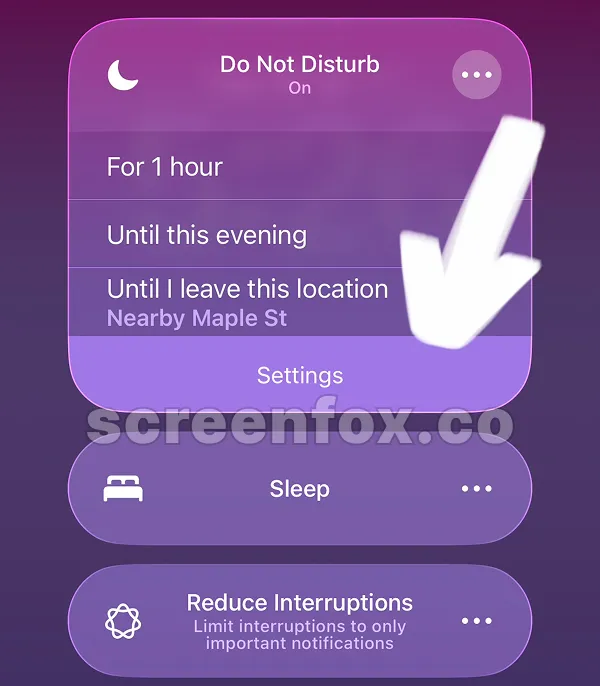
Then tap the Settings button at the bottom of the card. You also can quickly change time for like 1 Hour, Until this event or until I leave this location.
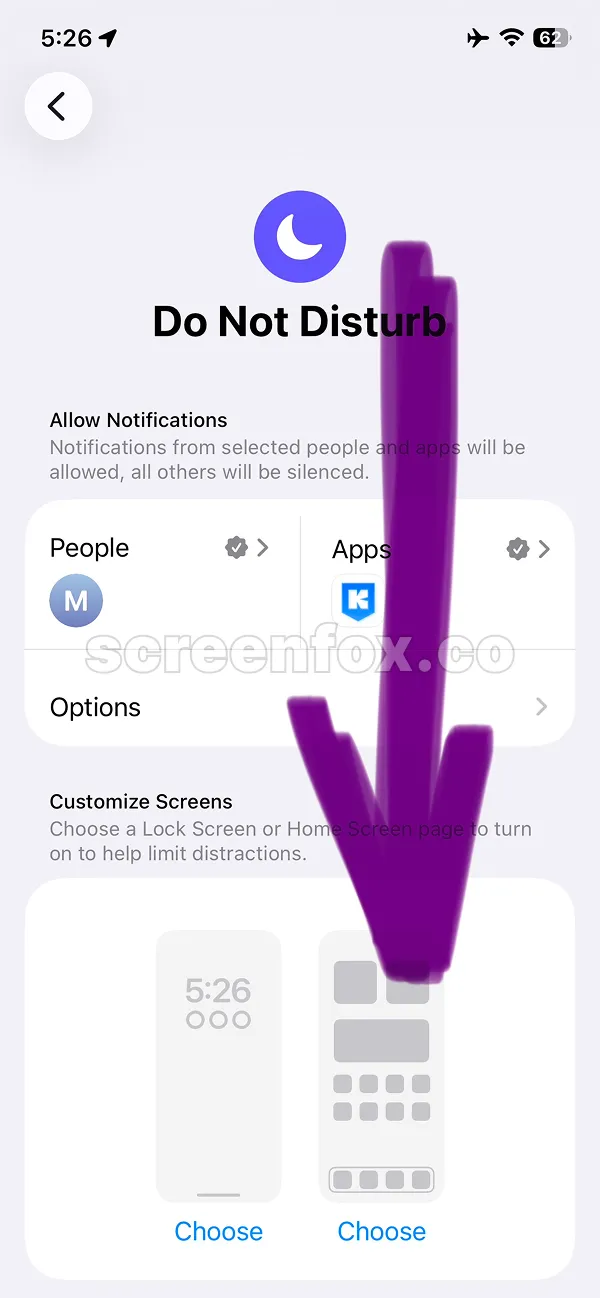
It is not easy to find, you need to scroll the Focus mode settings page and find the Set a schedule option.
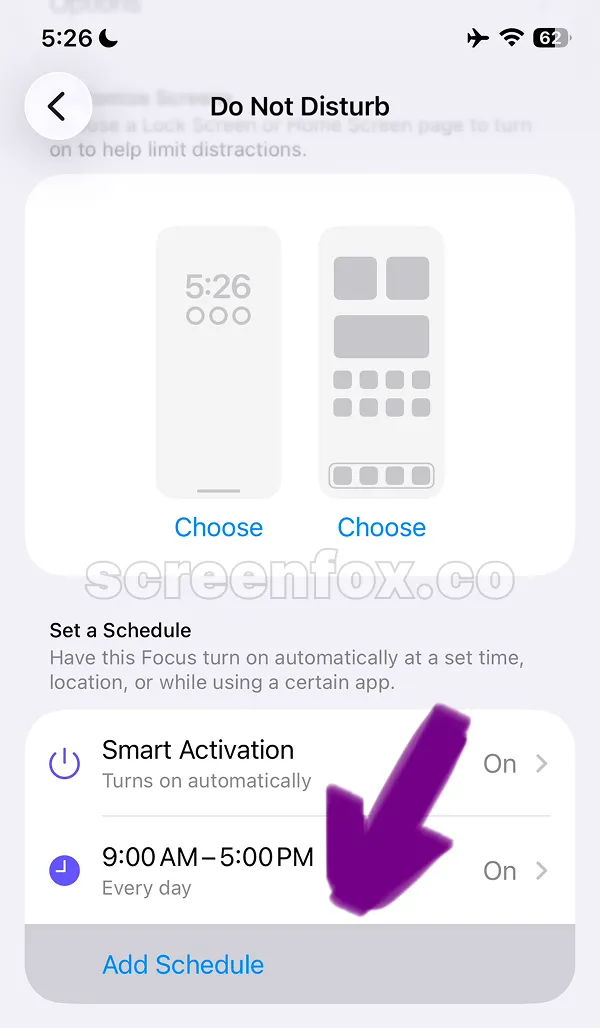
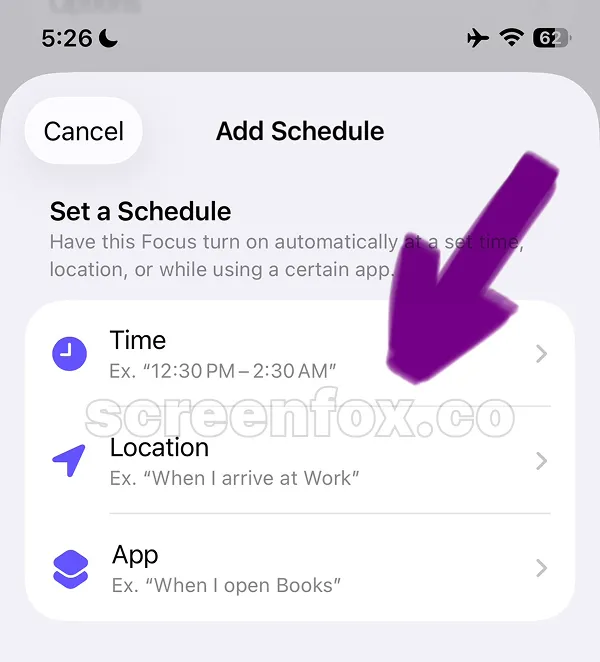
This setting will help you to see when the Focus mode will automatically be turned on and off by iPhone. To change time just tap the existing time or add a New schedule that is best for you.
You can choose one of three options to setup when Do Not Disturb will be on and off automatically by iPhone. You can set time manually, choose Location based option or set a Shortcut when some App is opened. Pro tip: This focus mode cannot be deleted, you need to change time or manually turn off this Focus mode on your phone
Actually this is very simple. You need to open the Lock screen and check screen next to the default Camera button. If screen does not show the Moon icon and the "Do Not Disturb" this means that this Focus mode was off. Now you know How to Turn Off Do Not Disturb literally in two minutes and unblock your notifications.
Download the ScreenFox app as an alternative to Focus modes on iPhone. The ScreenFox app helps you to Block Apps and Websites to stay focused, without blocking all your notifications.