

Ready to learn How to Turn On Do Not Disturb on iPhone? Just follow our simple guide with screenshots. This step-by-step tutorial shows how to turn on Do Not Disturb on iPhone so you can enjoy uninterrupted focus. Turning on Do Not Disturb is your first step to intentional focus. In two minutes you'll have focus mode activated to help you concentrate without distractions.
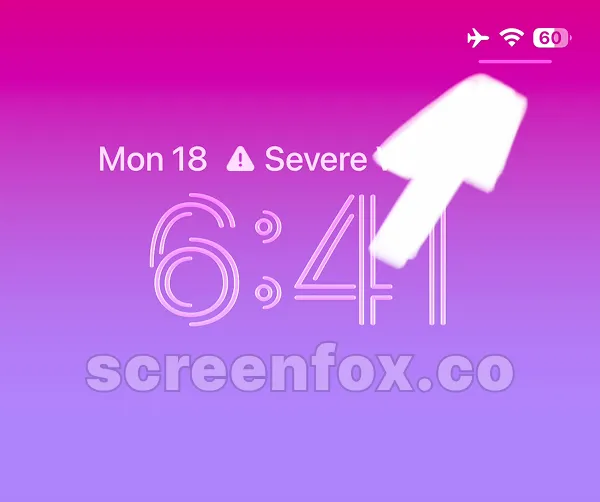
To access control center, simply swipe down from the upper right corner of your screen where the battery indicator appears. This brings up your quick access menu instantly.
Want a visual walkthrough? Watch our easy-to-follow video guide to learn how to activate Do Not Disturb and configure your schedule settings. You can view the video or continue reading our step-by-step text guide below.
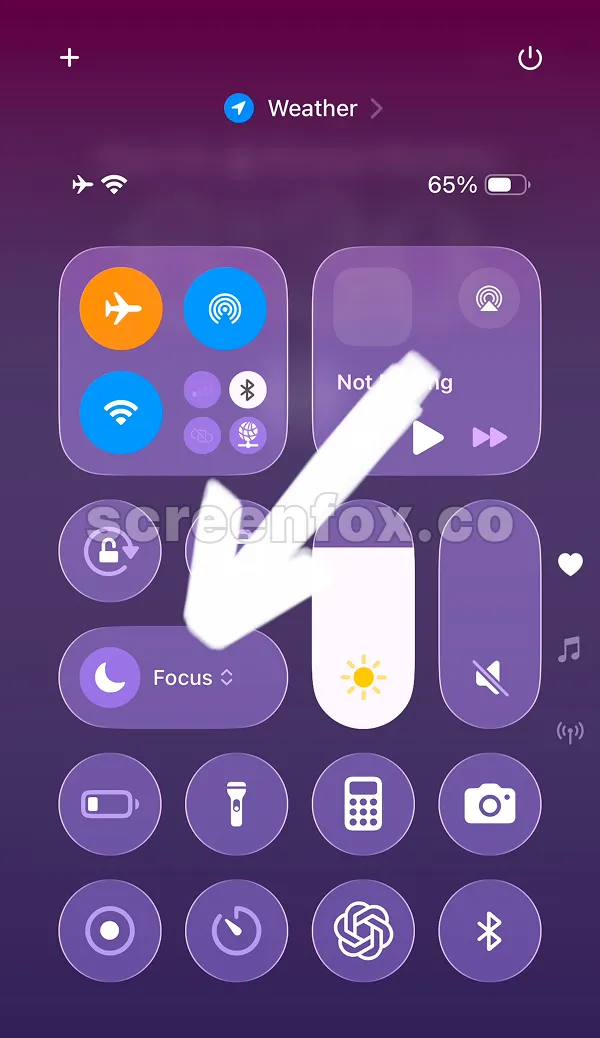
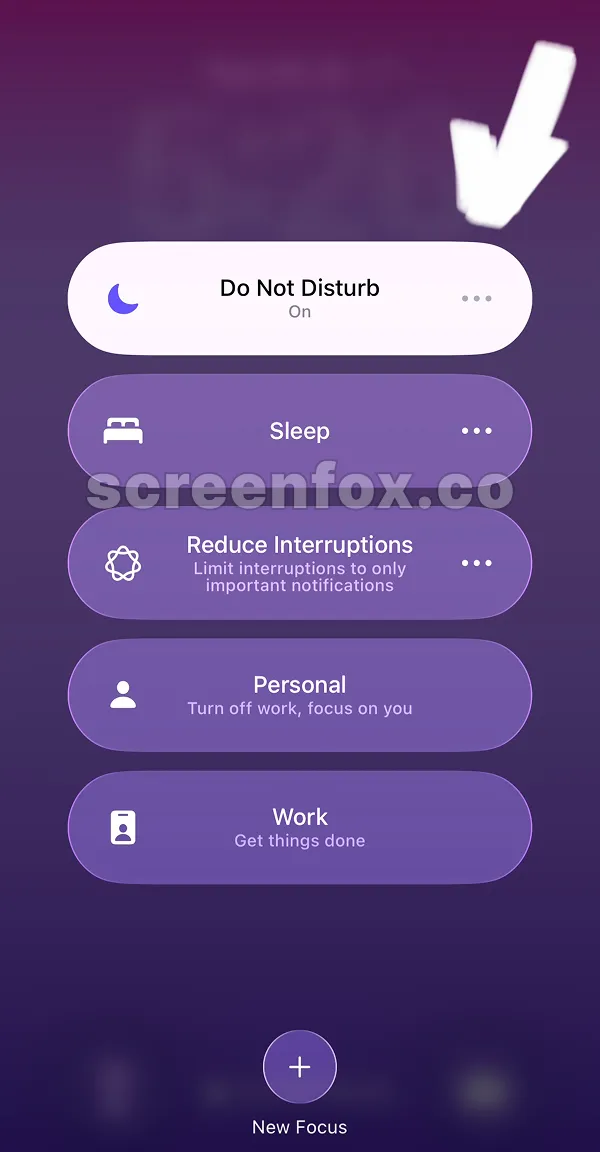
To turn on Do Not Disturb mode, simply tap the purple moon icon in your Control Center. Important: don't tap the Focus text itself—that's for settings. Keep reading to learn how it works.
Understanding when and why to turn on Do Not Disturb on iPhone helps you use this feature effectively. Common scenarios include during work meetings, while studying, during fitness routines, or while working. Unlike passive notifications that interrupt you, turning on Do Not Disturb is an active choice that signals to others you're unavailable. Your favorite contacts can still reach you for emergencies, but everything else waits. This balance between communication and focus is what makes this feature powerful for productivity.
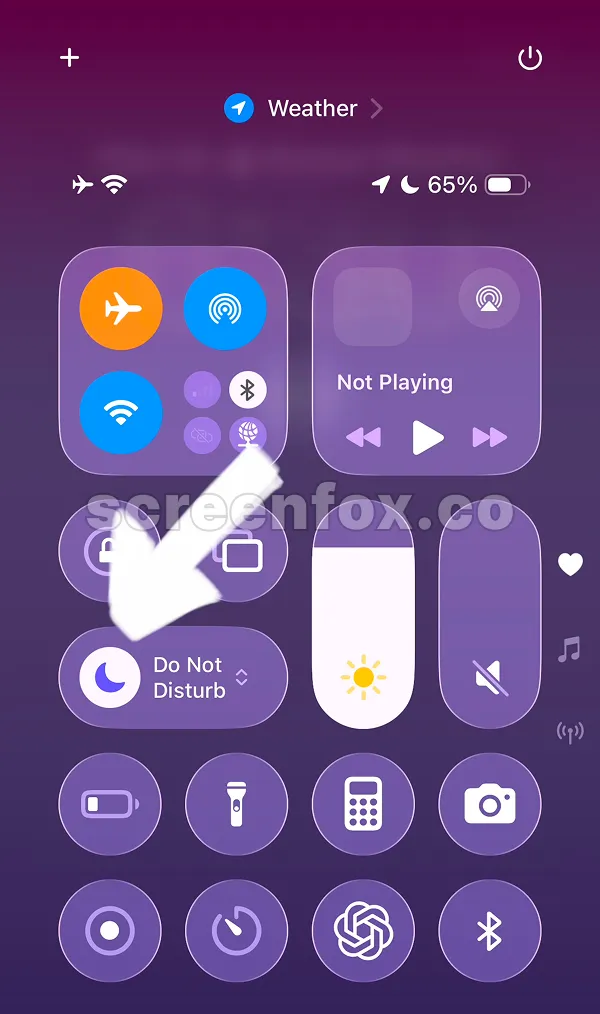
You've now successfully learned how to turn on Do Not Disturb on iPhone — a powerful feature for managing your digital wellness. That's it! If you see the moon icon highlighted in purple and the Do Not Disturb, the mode is on. Now you know how to Turn On Do Not Disturb on your iPhone in seconds. When this focus mode is active, your notifications will be silenced so you can stay focused on what matters.
Pro tip: you can customize settings for Focus modes. If you want an alternative option to maintain productivity while selectively receiving notifications, download the ScreenFox app for free.
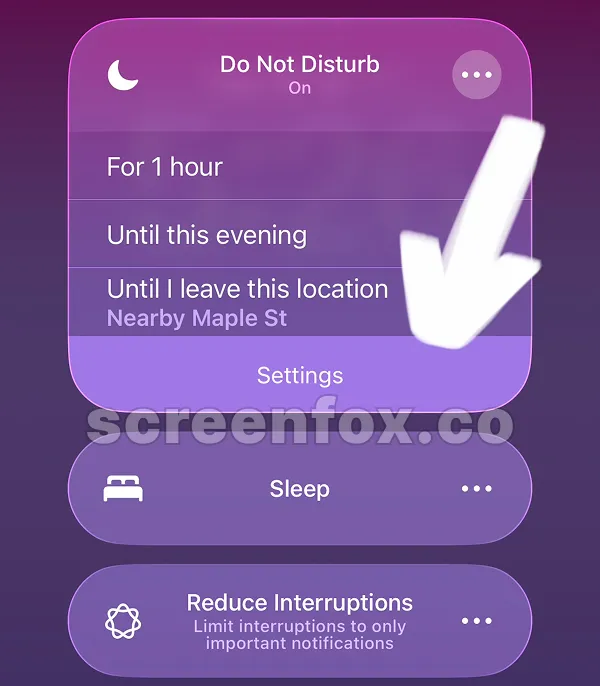
This focus mode can be set to turn on automatically each day. To configure this, tap the Do Not Disturb text shown in the previous step. Tapping Do Not Disturb will open the settings. Then tap the three dots on the right where the arrow points. You can also explore our other guides to learn how to turn off sleep mode on iPhone or discover how to block YouTube shorts to better maintain your focus.
Tap the Settings button at the bottom of the card to customize daily Schedules. You can also quickly set a duration like 1 Hour, Until this evening, or Until I leave this location.
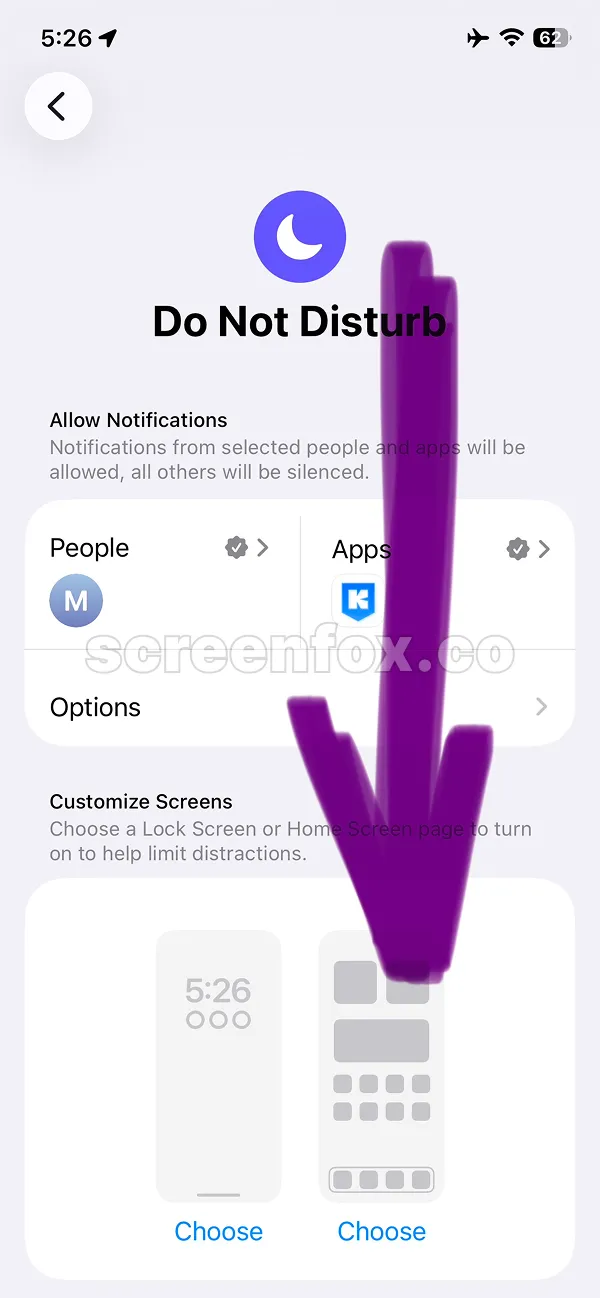
It takes a bit of exploring—scroll through the Focus mode settings page until you find the Set a schedule option. This is where you configure automatic activation and set schedules convenient for you.
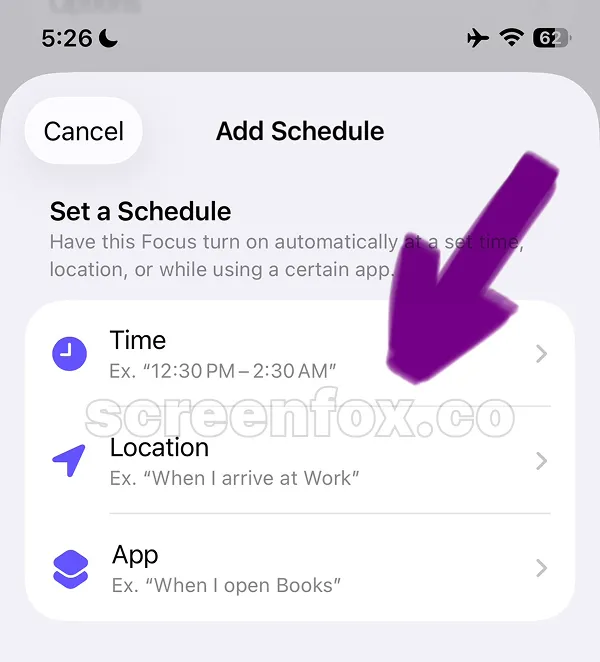
Beyond the basic method to turn on Do Not Disturb on iPhone, you can automate this process with schedules. This setting lets you see when Do Not Disturb will automatically activate and deactivate on your iPhone. To adjust the timing, tap the Add Schedule button or tap time to edit existing schedule and set time that suits your routine best.
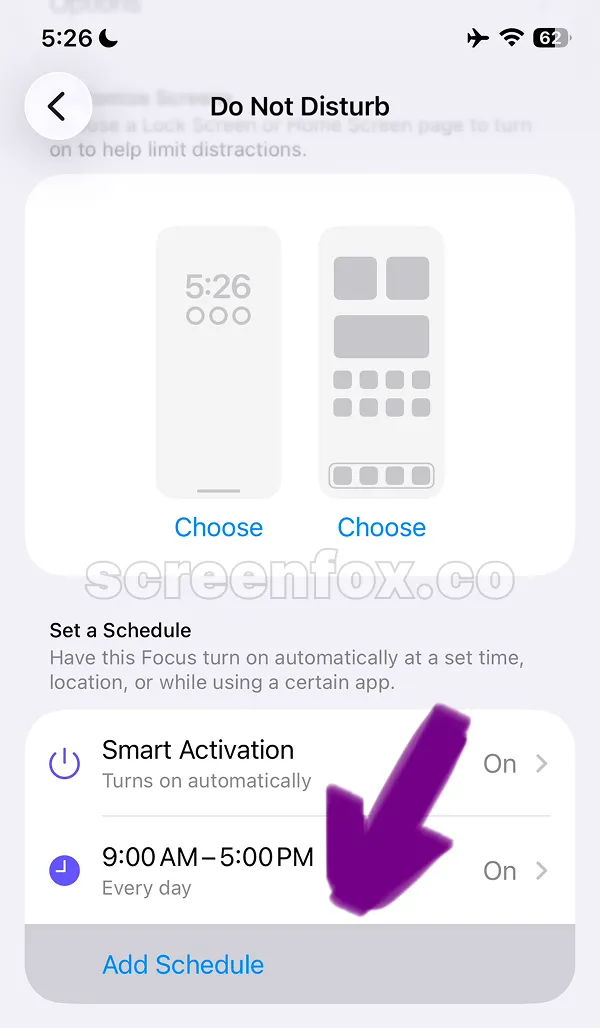
You have three options to determine when Do Not Disturb activates and deactivates automatically. You can set a specific time manually, choose a Location-based trigger, or configure a Shortcut that activates when certain apps open. Pro tip: This focus mode is permanent—you can adjust scheduling or manually deactivate it on your phone anytime but you can not delete this mode completely on your iPhone.
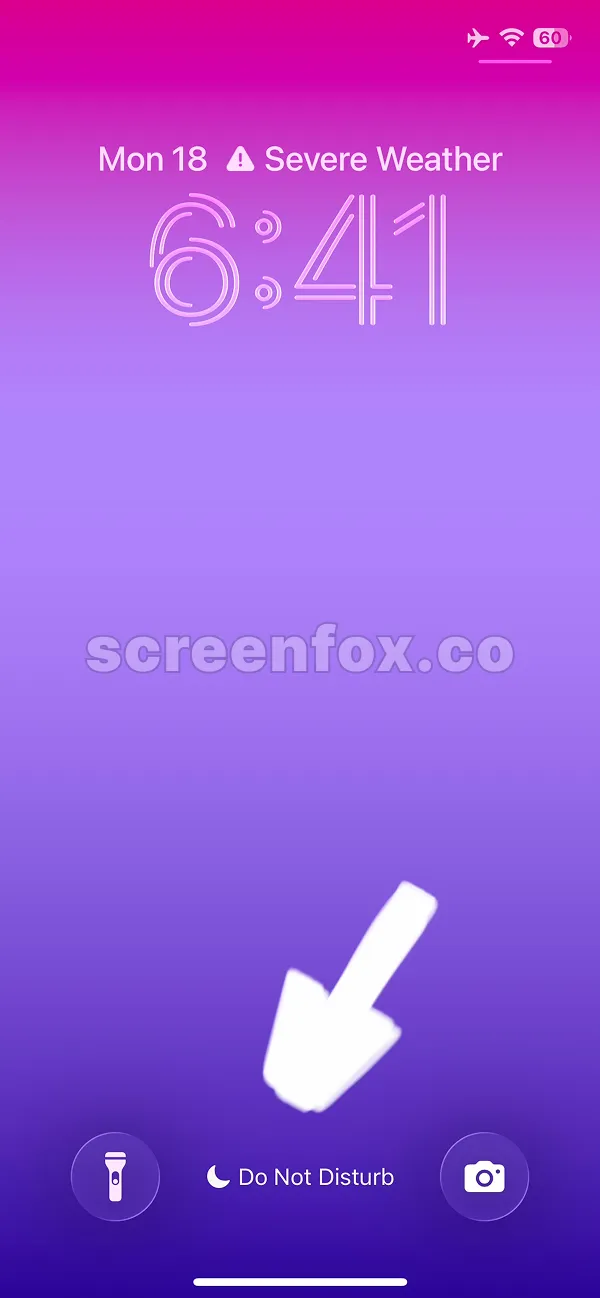
This is straightforward. Open your lock screen and check the area next to the default Camera button. If you see the Moon icon and "Do Not Disturb" text, this means the focus mode is active. Now you know How to Turn On Do Not Disturb on iPhone literally in two minutes to protect your focus time.
Download the ScreenFox app as an alternative to Focus modes on iPhone. The ScreenFox app helps you Block Apps and Websites to maintain productivity, while still allowing important notifications through.