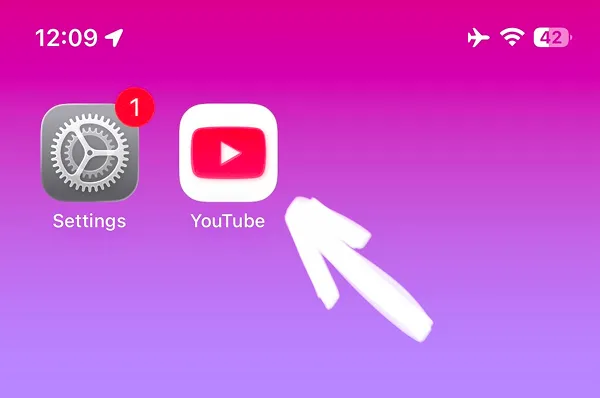


If you need to know How to Block YouTube on iPhone, read our quick guide with detailed images and video manual. It will take just a couple of minutes to block YouTube app using the built-in iOS ScreenTime feature. To make blocking more powerful, download the ScreenFox app to save your time and regain focus.
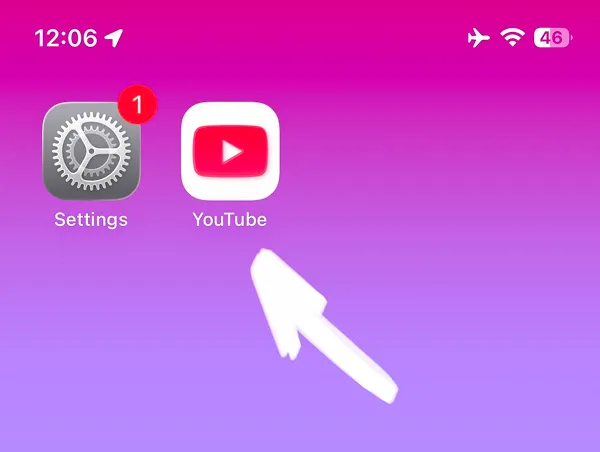
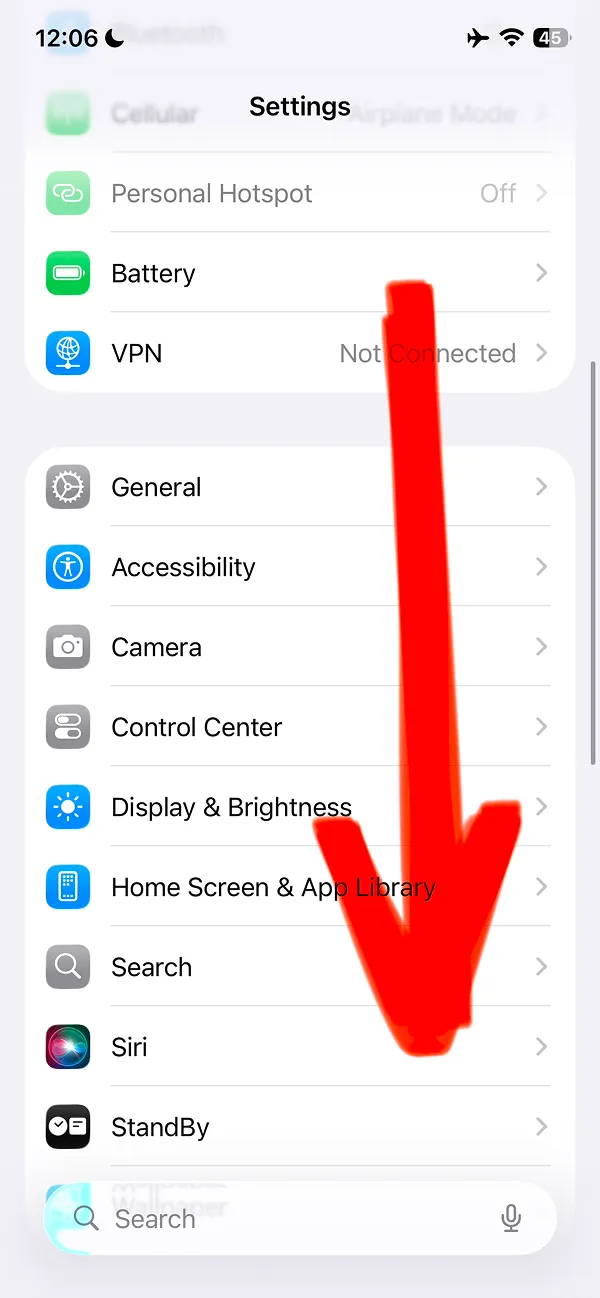
Scroll the page and find the ScreenTime feature.
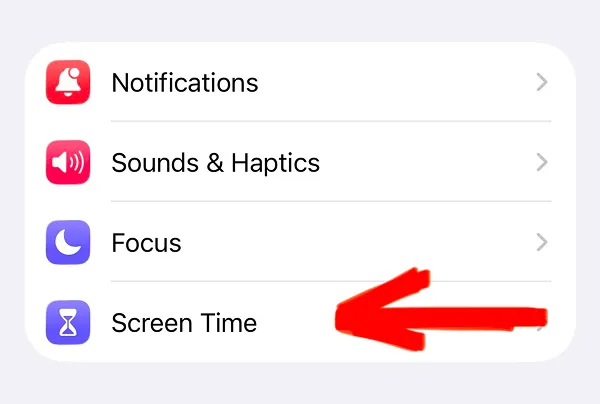
The feature is shown on the next screenshot by the red arrow.
If video is your preferred option, you can watch the same 2-minute video guide. Keep reading or play the video — choose the best option for you.
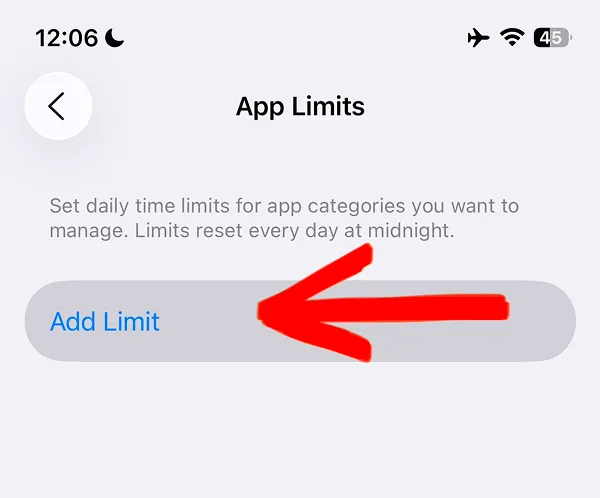
App Limits is the built-in iOS feature that will help you find the YouTube app and set up blocking.
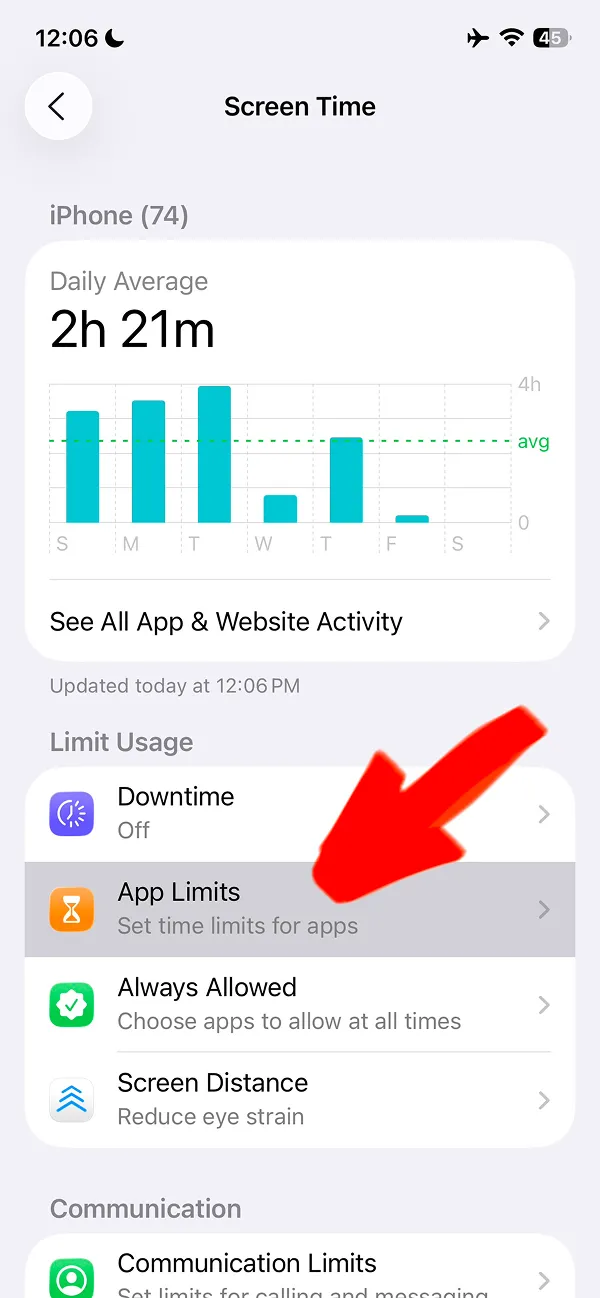
Then tap App Limits to continue.
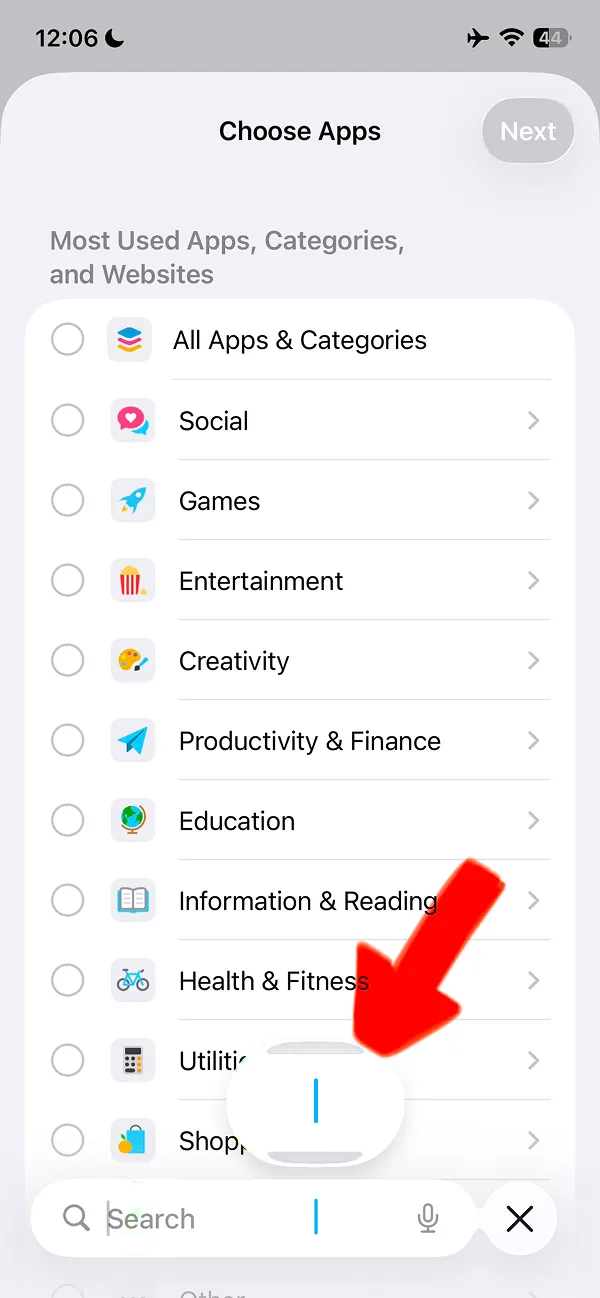
Just tap the search bar at the bottom of the screen and type the app name.
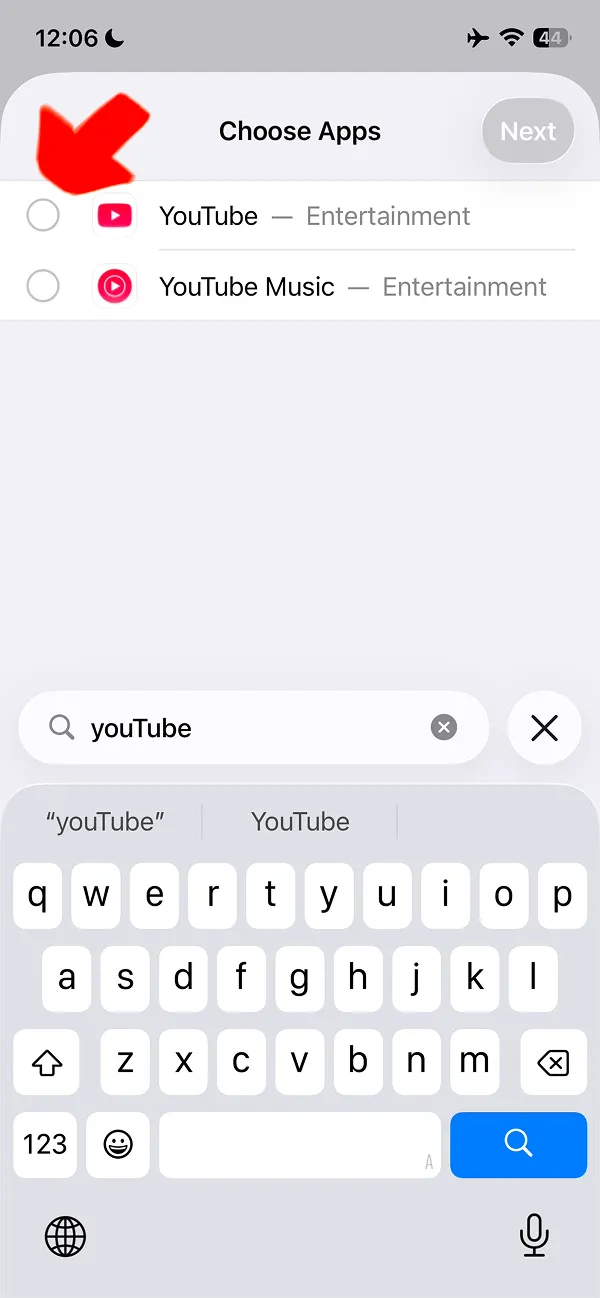
Tap the grey circle on the left of the YouTube icon. You can choose to block any social media on your iPhone with this method — read our other guides to learn how to block Facebook, Instagram, TikTok, X (formerly Twitter), Reddit, WhatsApp or any other app using this method.
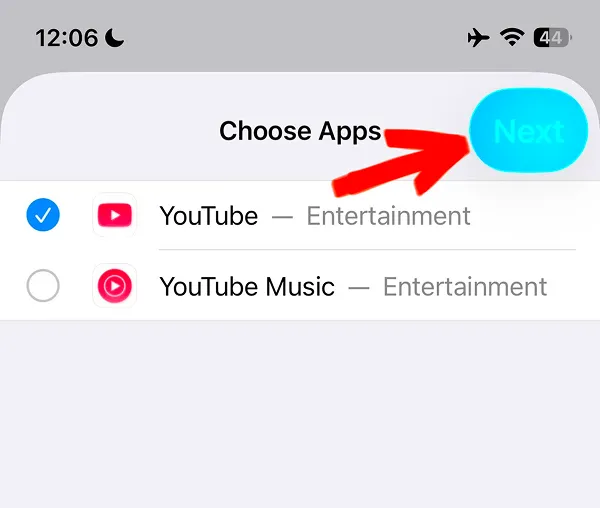
Do not choose YouTube Music by accident — the icons look very similar. Then tap the Next button once the app is selected.
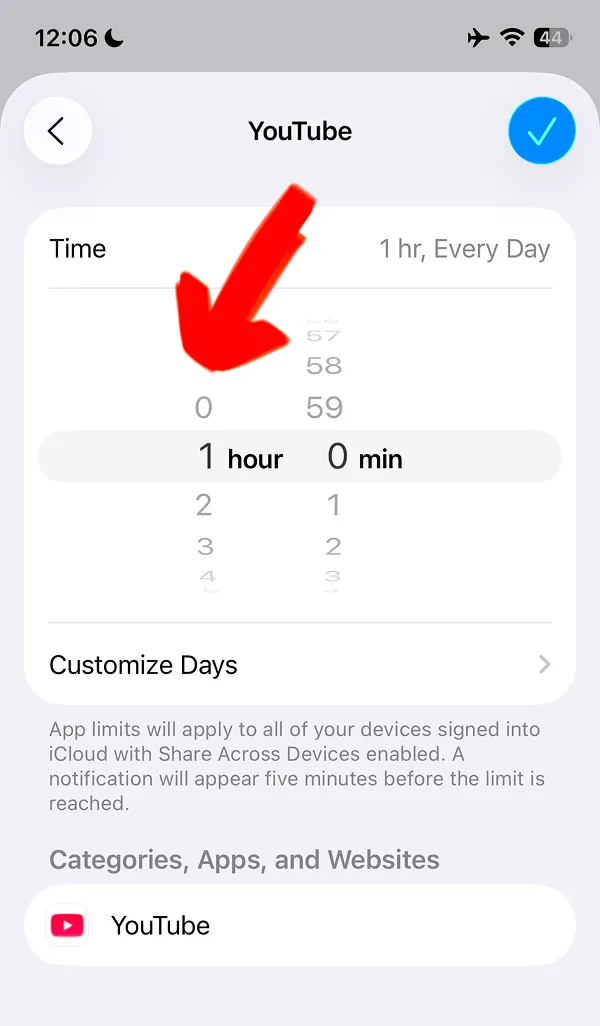
To block YouTube completely you need to change the time setting to 0 hours. This will keep the app blocked every day. You can also customize specific days — for example, to allow a couple of hours on weekends.
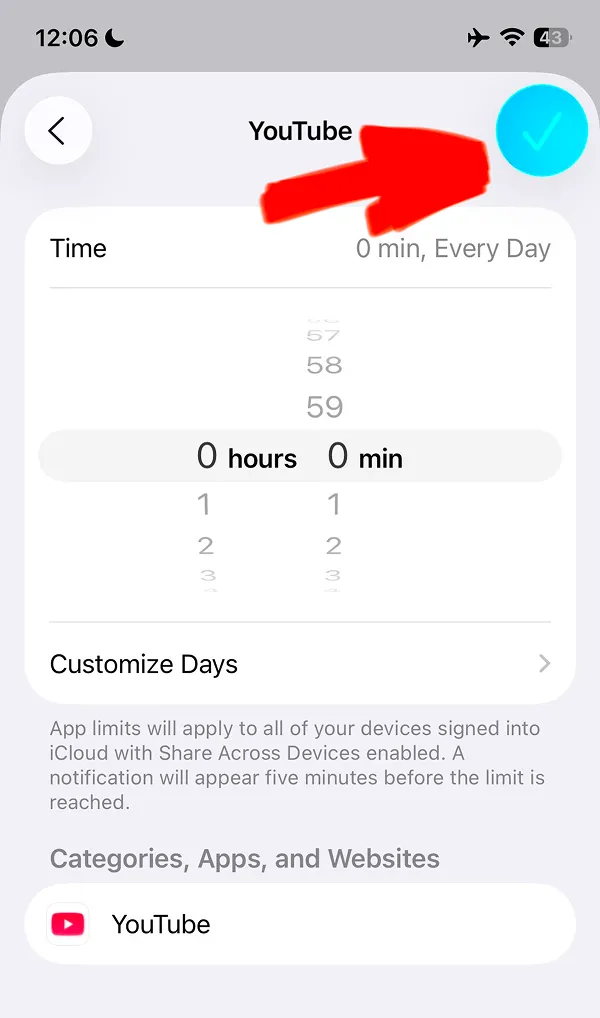
When the time is changed to 0 hours, just tap the blue button with the checkbox icon as shown in the next screenshot. This will save your changes and block the app on iPhone.
That is the final step! Now you know how to block YouTube on iPhone. You can also read this guide to learn how to turn off YouTube Shorts in minutes.
However, this method has one drawback. To keep you using apps, iOS makes it very easy to stop the blocking. Download the ScreenFox app to keep it blocked for longer on your iPhone.
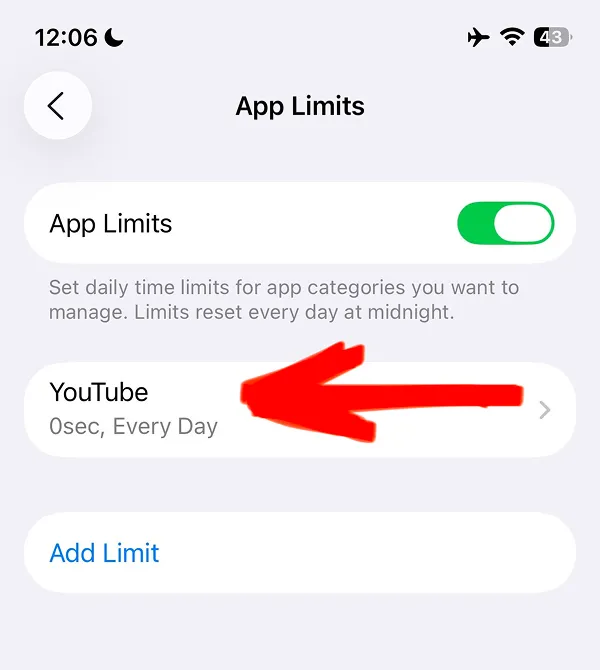
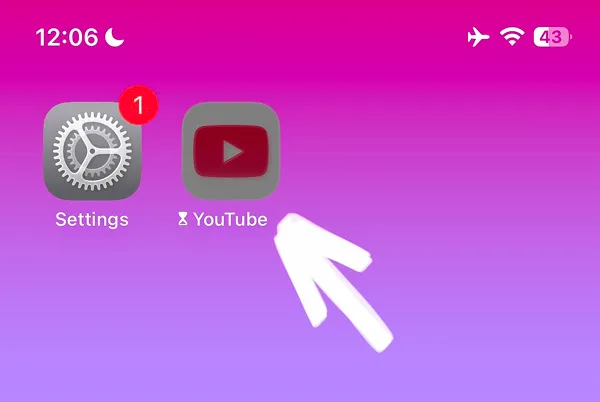
After you set YouTube blocking to 0 hours, your iPhone will block the icon. When you try to open it, iOS will show you the built-in Time Limit screen.
This is the screen with the main issue. It gives you two options: the first is to close it, but the second is to Ignore Limit.
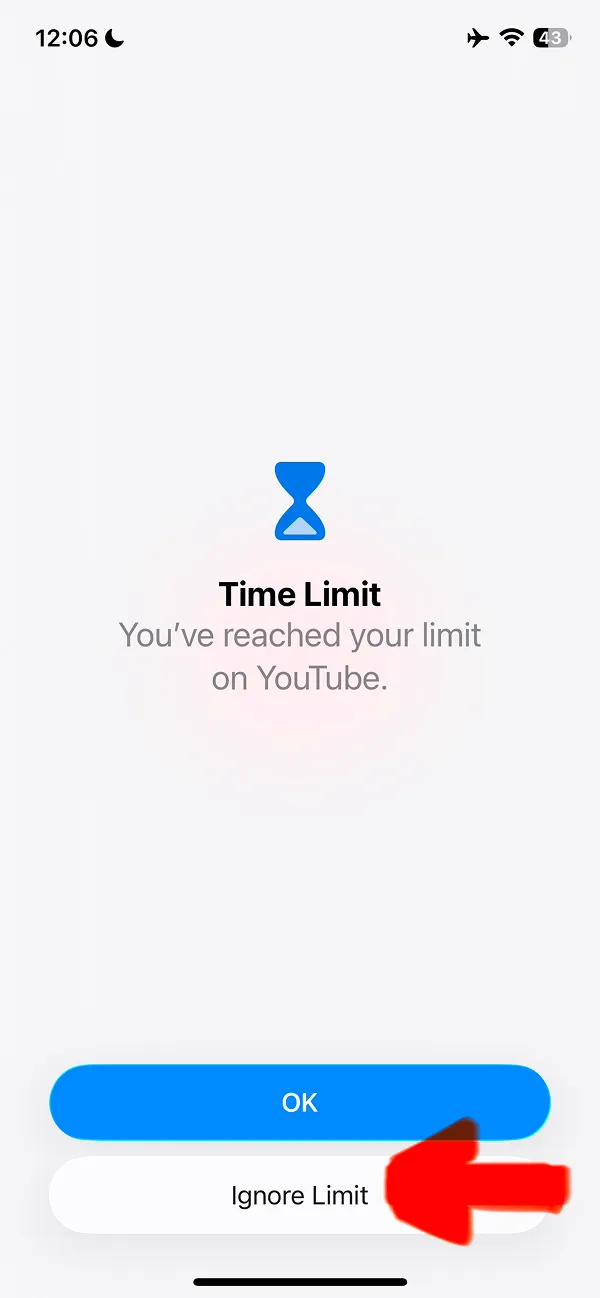
This Ignore Limit feature is the main issue — it allows you to disable blocking with just one tap for up to a full day.
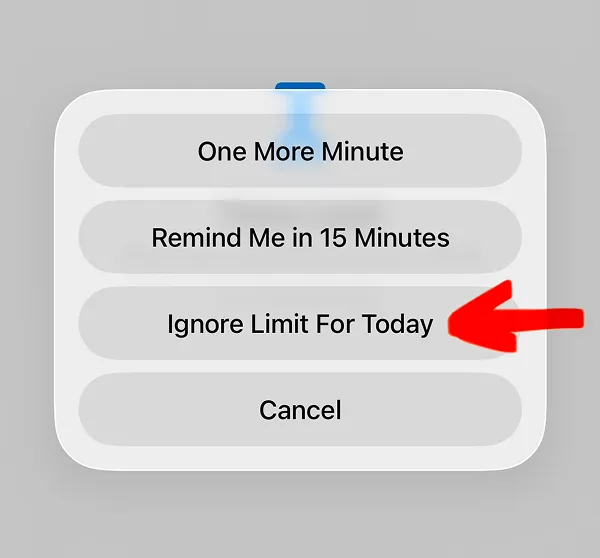
After you select this option, the app will unfortunately be working again. In our opinion, it makes unblocking YouTube too easy with this method.
Try downloading the ScreenFox app as an alternative — ScreenFox hides the Ignore Limit entirely and makes it much harder to unblock YouTube. This is the core feature that will help you change your habit of watching it and help you focus better.