


This guide shows you how to block social media on iPhone using Apple's built-in Screen Time feature. Our step-by-step instructions with detailed screenshots will help you regain focus.
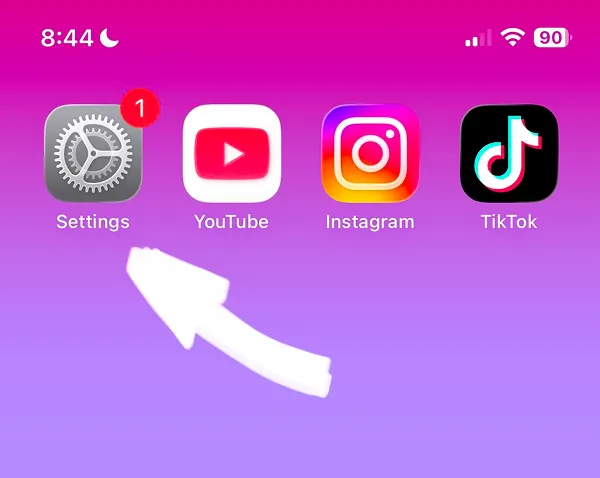
Need a faster explanation? Play the 2-minute video tutorial or keep reading the illustrated step-by-step guide below.
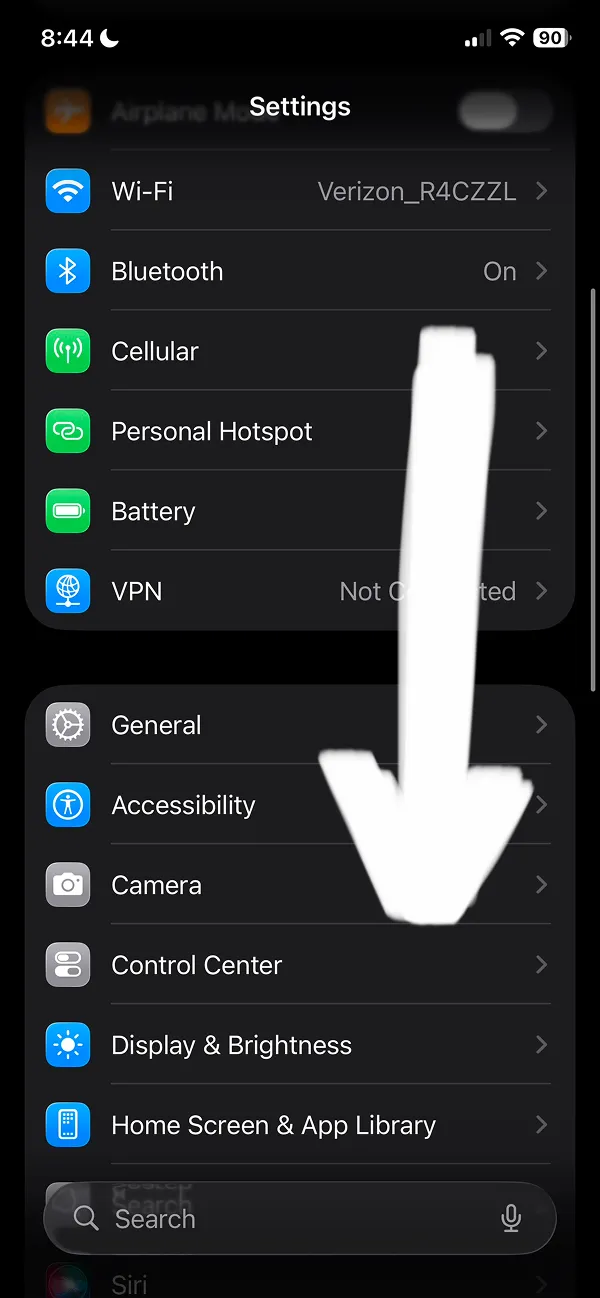
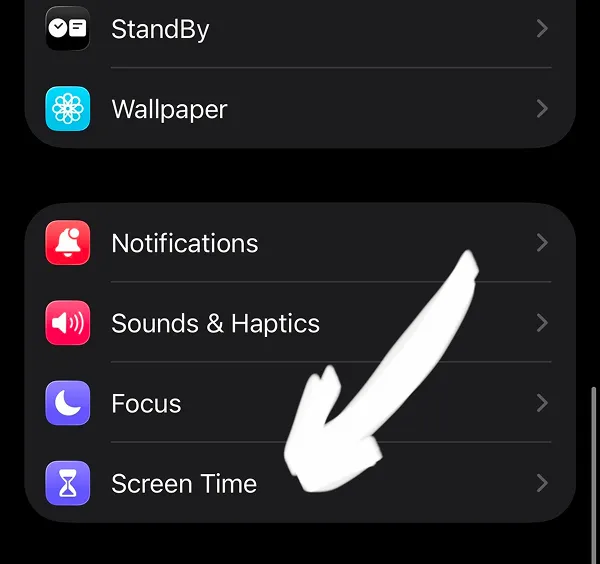
Screen Time settings could be difficult to find. Just scroll the settings page and find it in the same block as notifications settings.
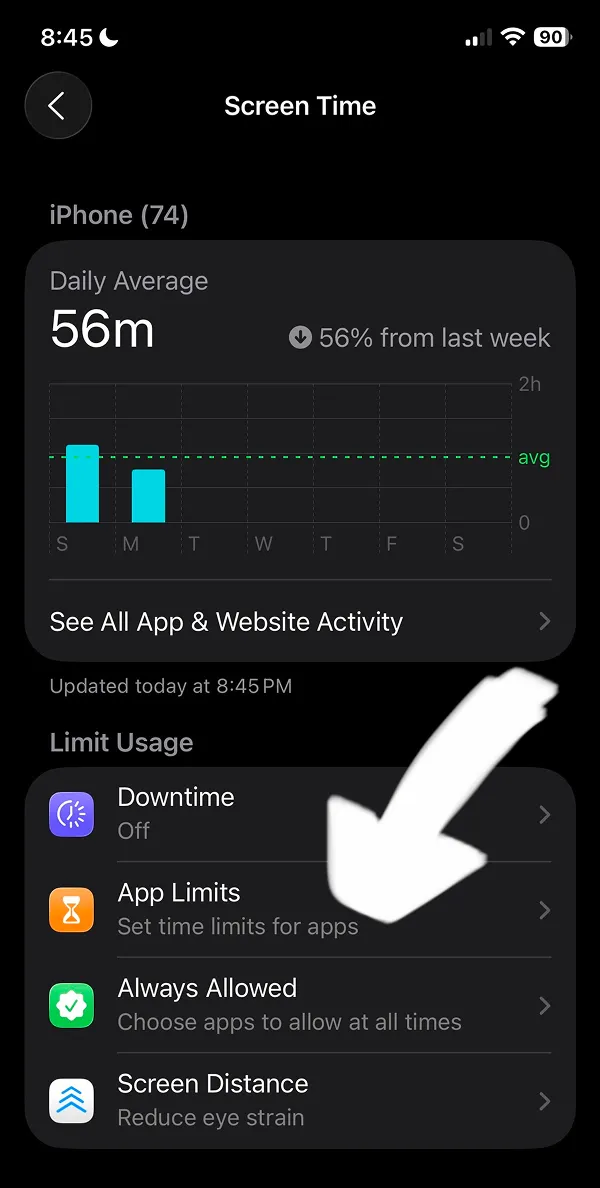
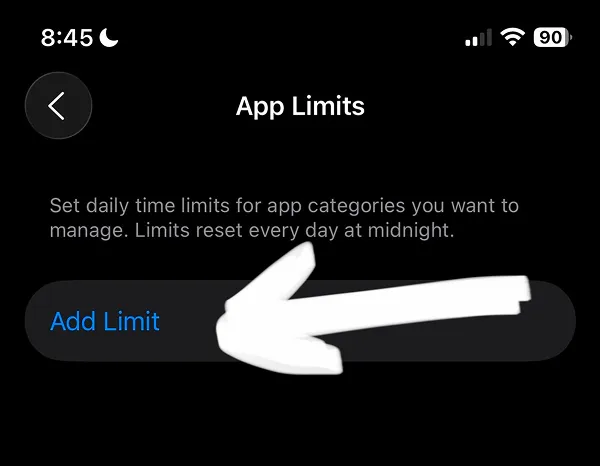
At the Screen Time screen, select the App Limits feature with the orange icon.
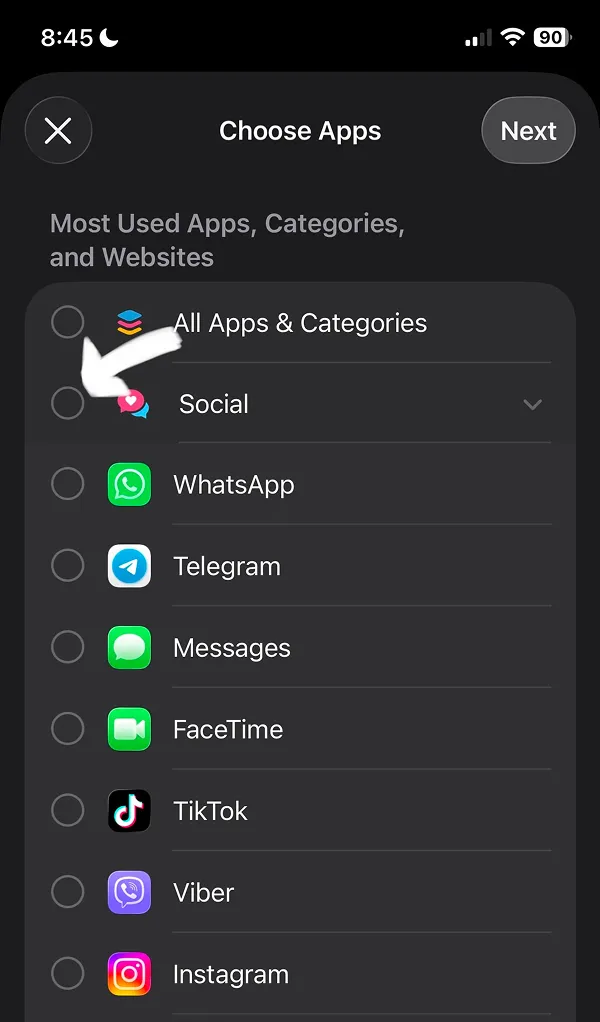
This will open the Choose Apps iOS setting with the list of all your iPhone Apps.
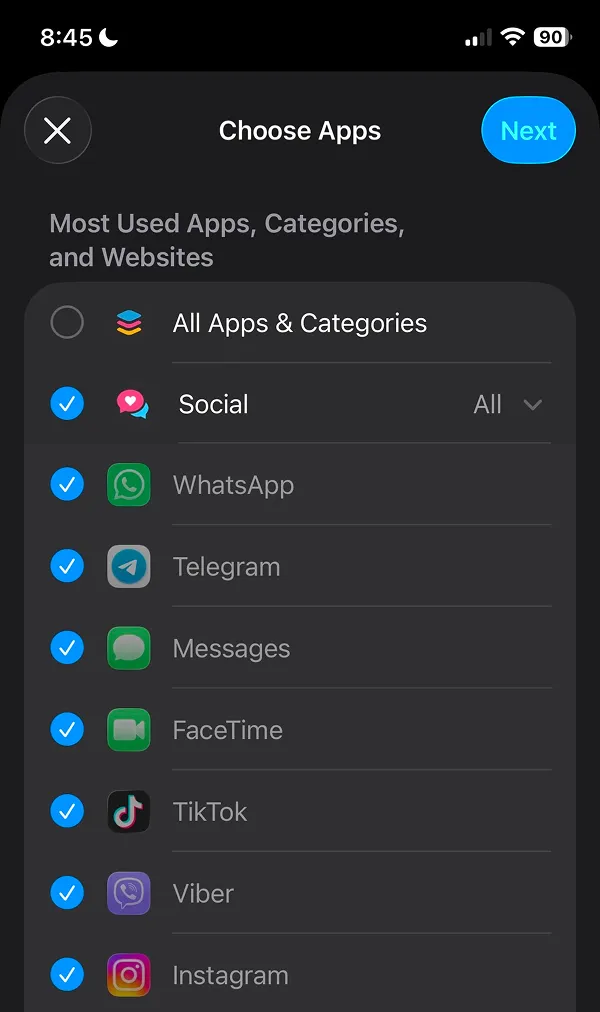
To block social media apps on iPhone, you can select the Social group and iPhone will automatically select all Social Media apps.
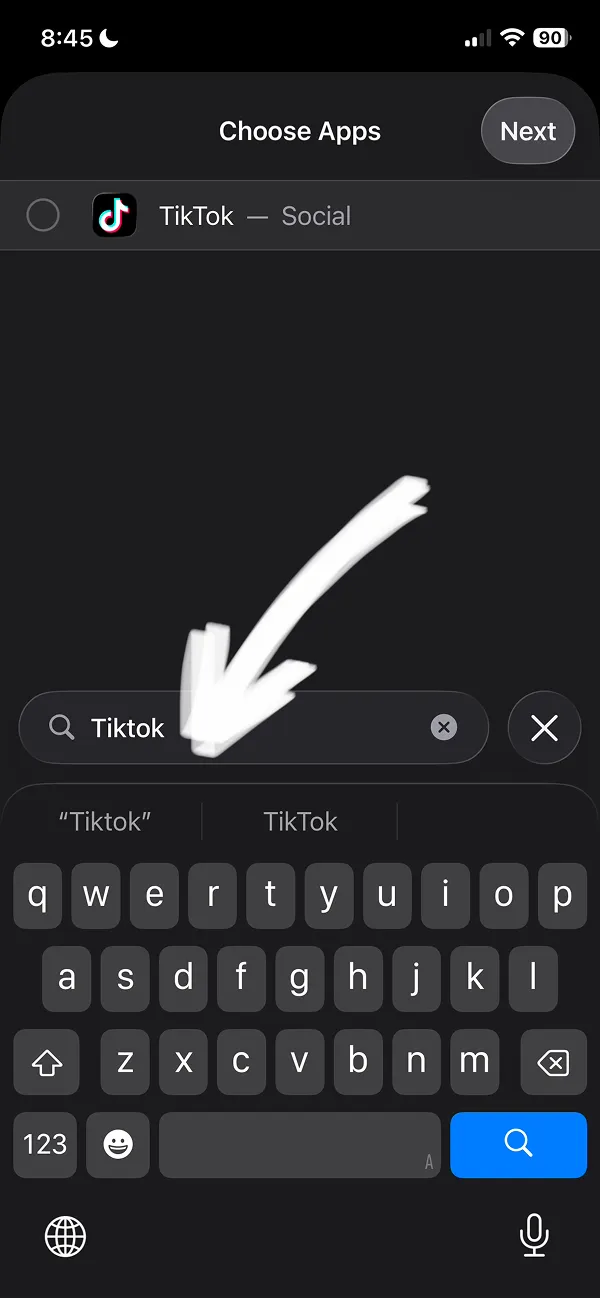
Option 2 is to use search to find the Social media app you want to block manually. Just type the name of the app you want to block.
Important tip: with the iPhone Screen Time built-in feature, it is relatively easy to stop blocking. Continue reading our guide to know why and how to fix this.
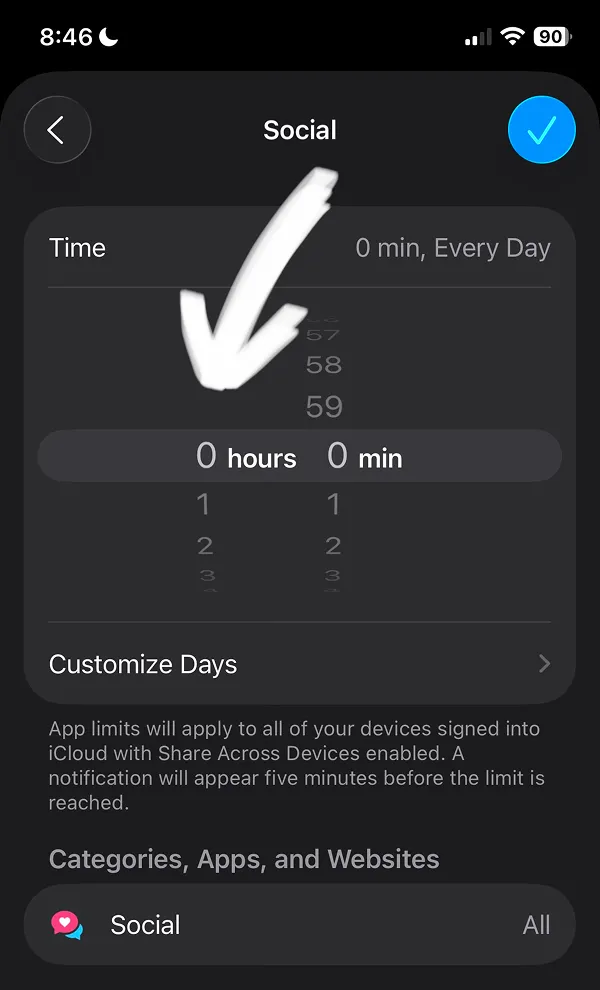
To do this, just scroll the hours and minutes UI like when you set a timer duration.
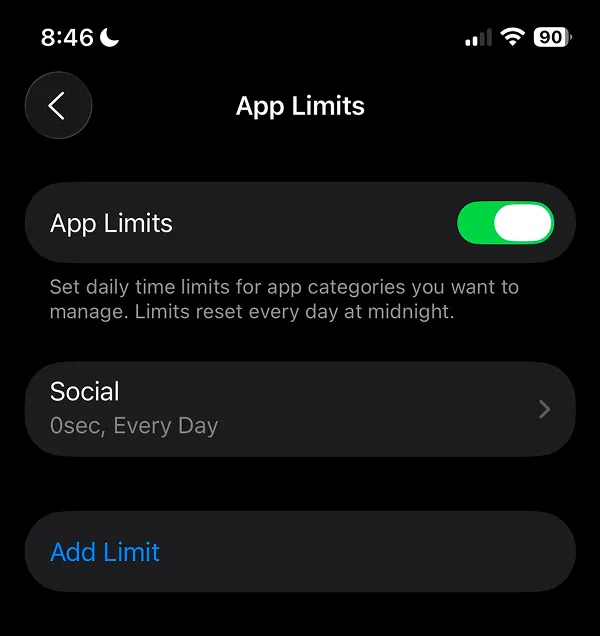
If you see a green toggle for the App Limits, app limits are active. Now we will show you how this works with your phone.
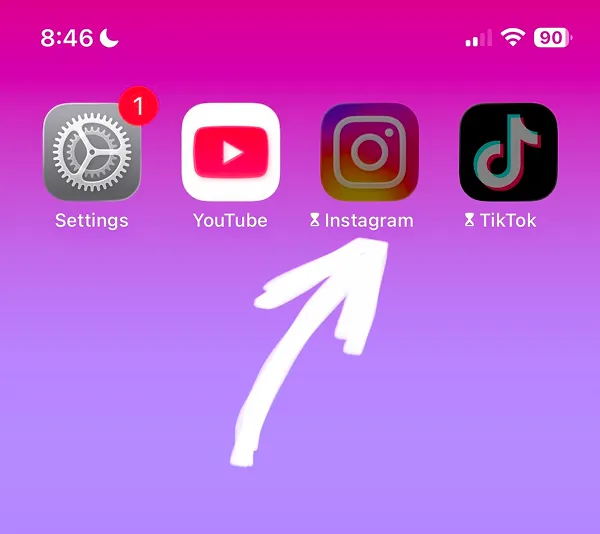
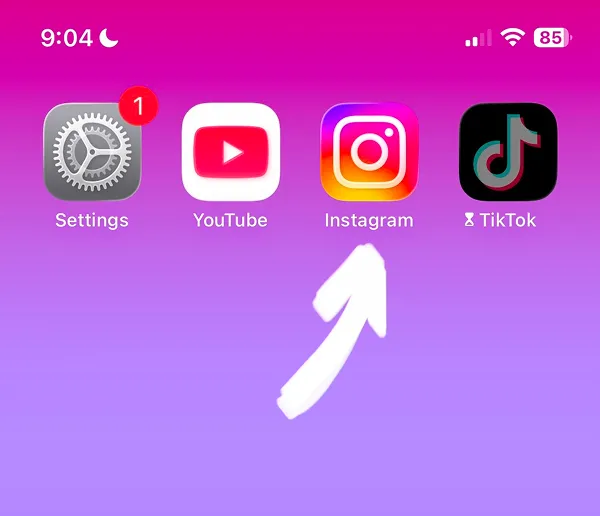
When you blocked the social media on iPhone, you will see that selected social media apps icons are disabled and showing the time icon near app name. Try to open the app.
When you try opening the app, you will see a new screen of Time Limit. Tap OK to close the app. Unfortunately, it is too easy to ignore the limit you set by tapping the "Ignore Limit" button.
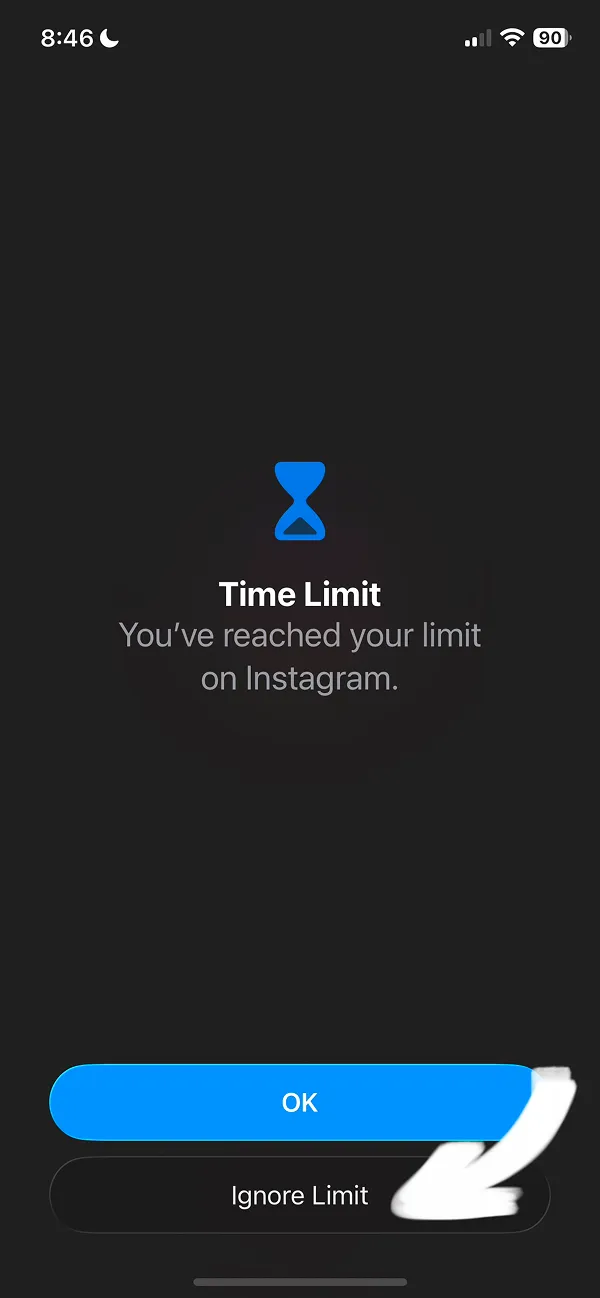
How to stop blocking social media? To ignore limits, just tap "Ignore Limit for Today" button or select another time limit.

After you disabled the Screen Time app limits, the social media app you selected will be working again.
Now you know how to block social media on iPhone effectively. Follow these steps to set up App Limits and start protecting your focus today.