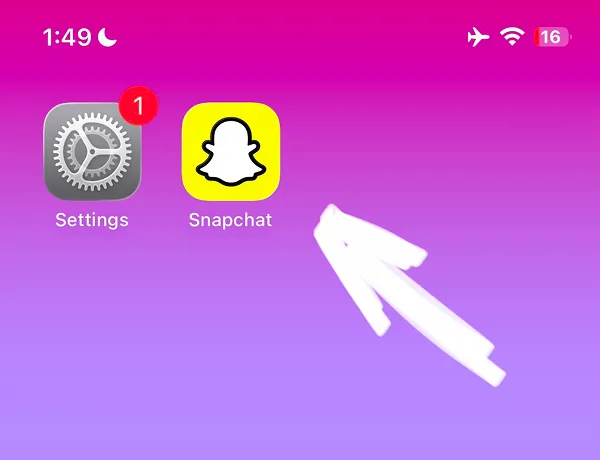


Learn How To Block Snapchat On iPhone with built-in iOS App Limits feature. In 2 minutes you will know how to block Snapchat for free and save your time using social media. The second option is the ScreenFox app designed specifically to help you block any app on your iPhone. Follow this step-by-step guide to block Snapchat on iPhone using iOS built-in features.
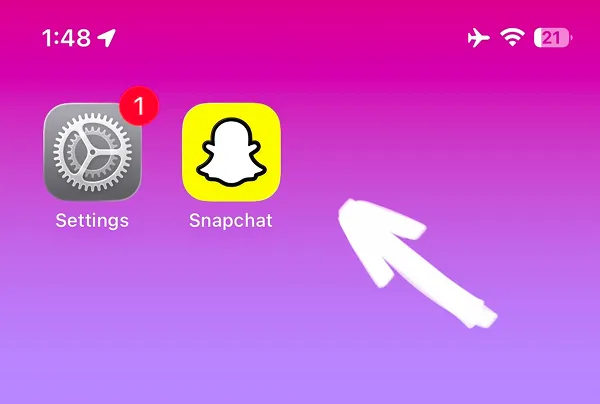
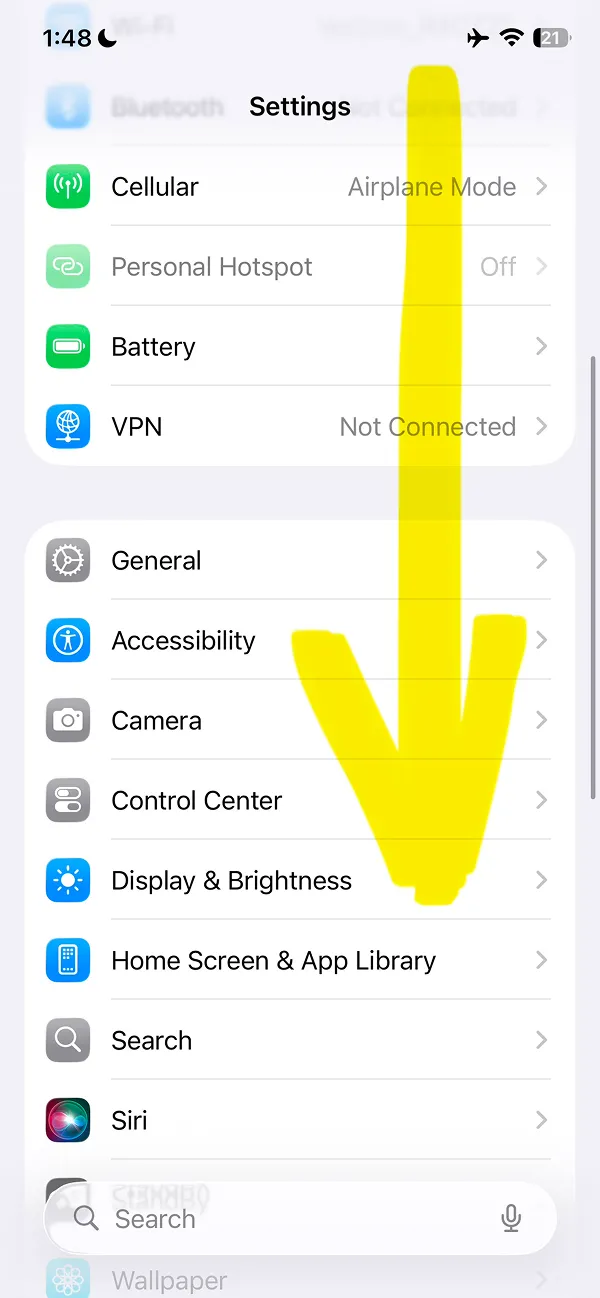
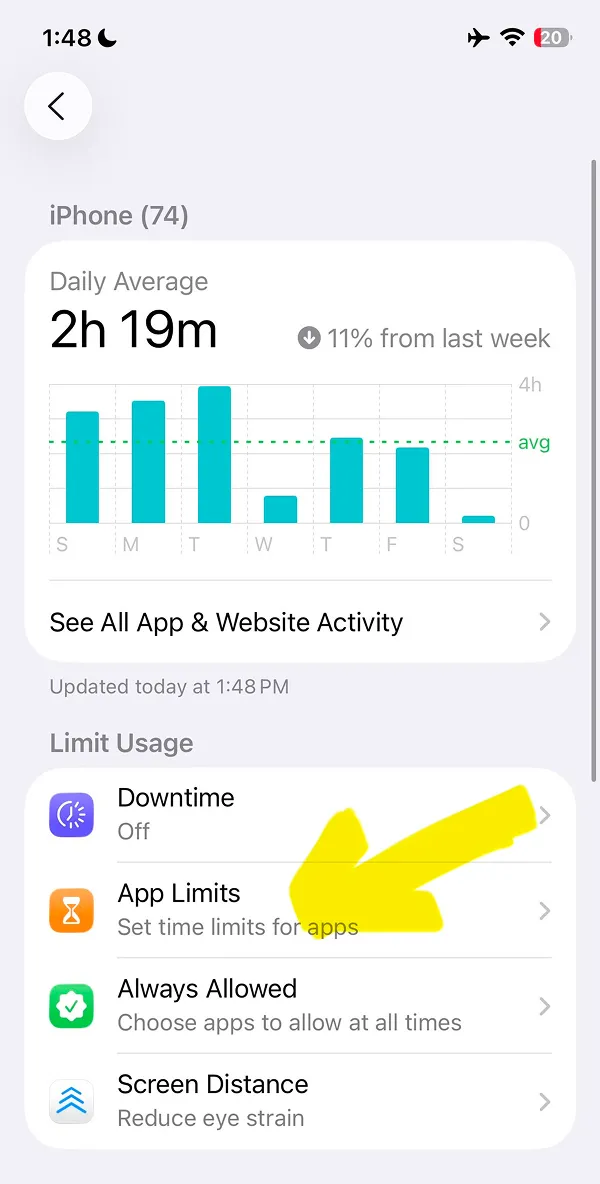
Then scroll through the settings page and find the Screen Time feature, tap it.
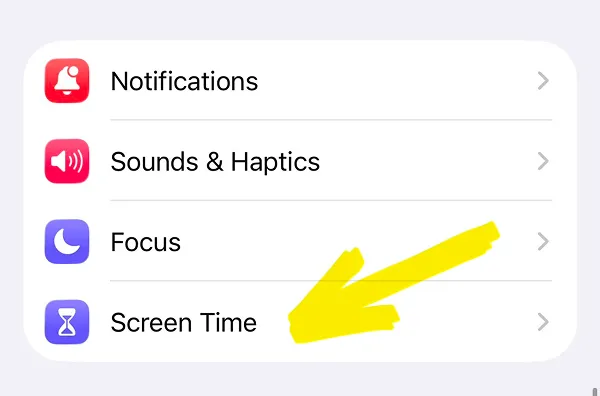
Tap the Screen Time menu to open blocking settings.
Watch our 2-minute guide as an alternative to written guide. Just click the play icon or keep reading the guide with images.
At the App Limits screen, select the blue Add Limit button to see all installed apps on your iPhone.
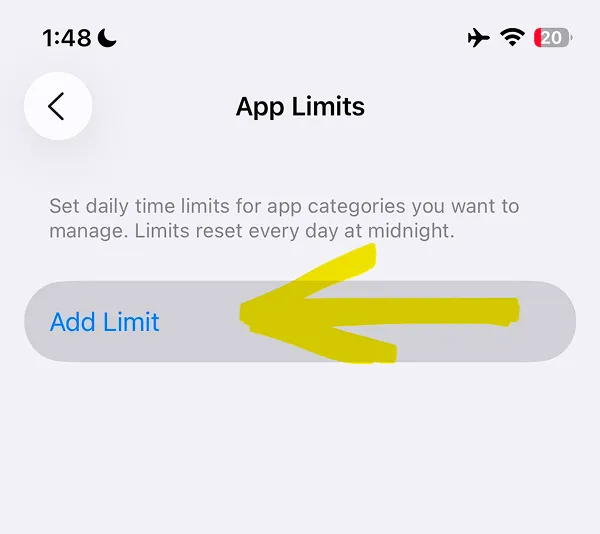
This feature will set the daily limits for available time of using the Snapchat app or any other app on your iPhone.
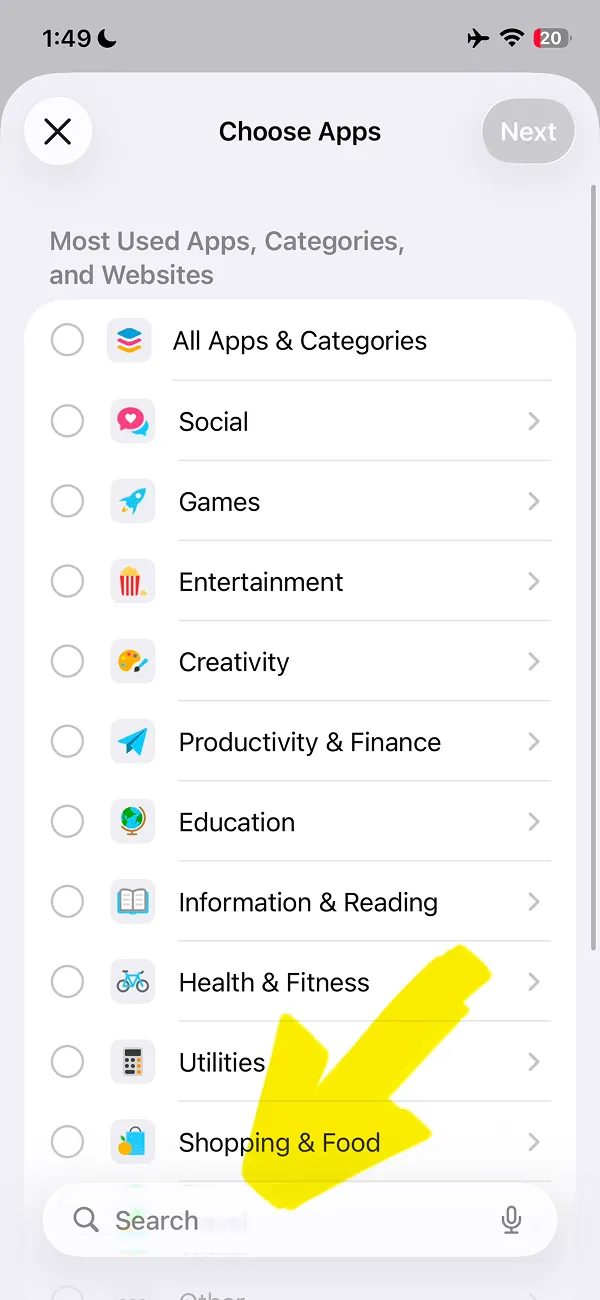
Tap the search field and search for the app you need. You can also block any social media app on your iPhone this way, for example you can block Facebook, Instagram, WhatsApp, TikTok, X (formerly Twitter), Reddit, YouTube, or any other app.
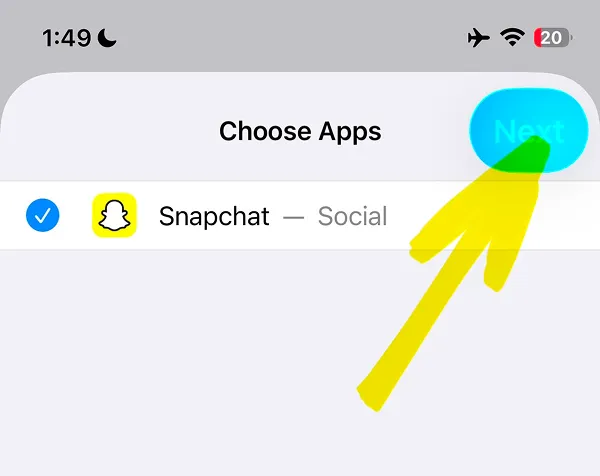
Tap the circle button on the left of the Snapchat logo to select the app.
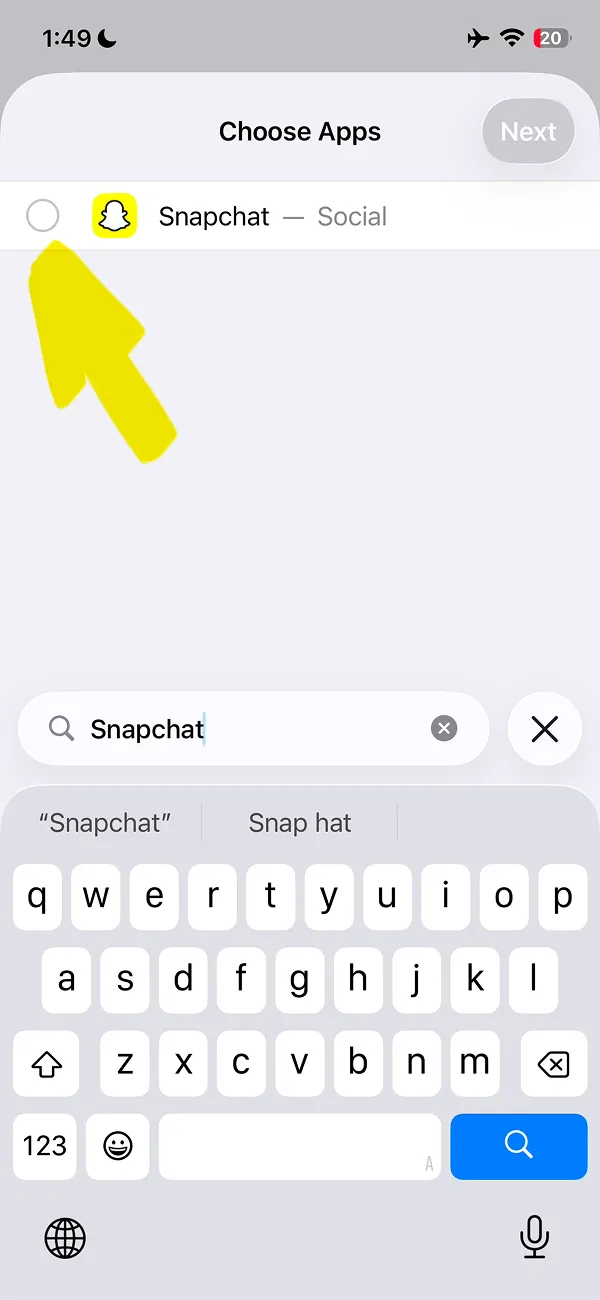
To apply changes, tap the blue Next button on the top right corner of the screen.
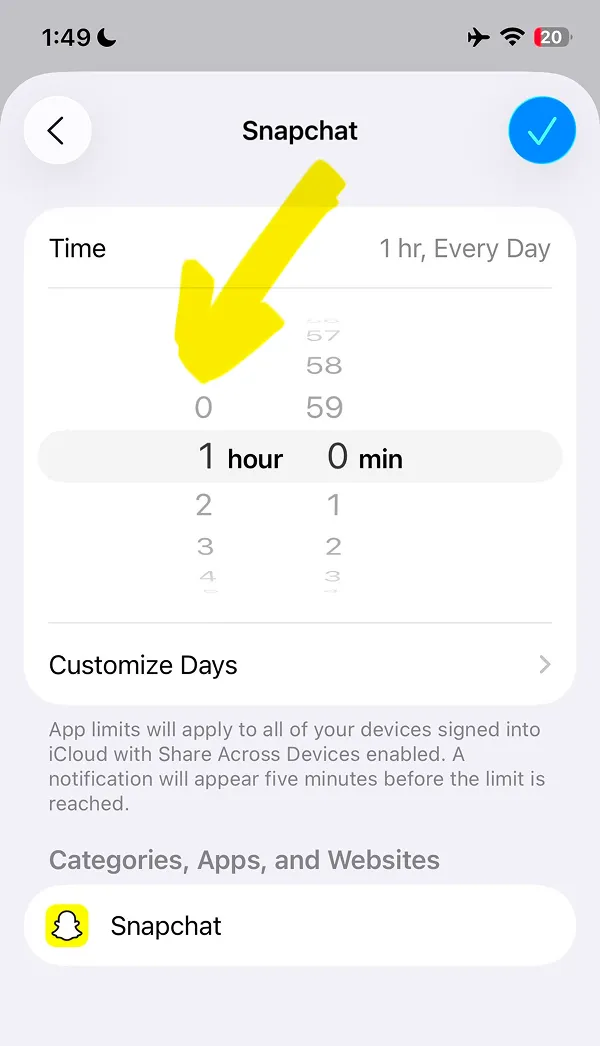
To block Snapchat app completely you need to change time to 0 hours and 0 minutes for each day. With this method each day can be customized with different time limit; tap the Customize days button to edit.
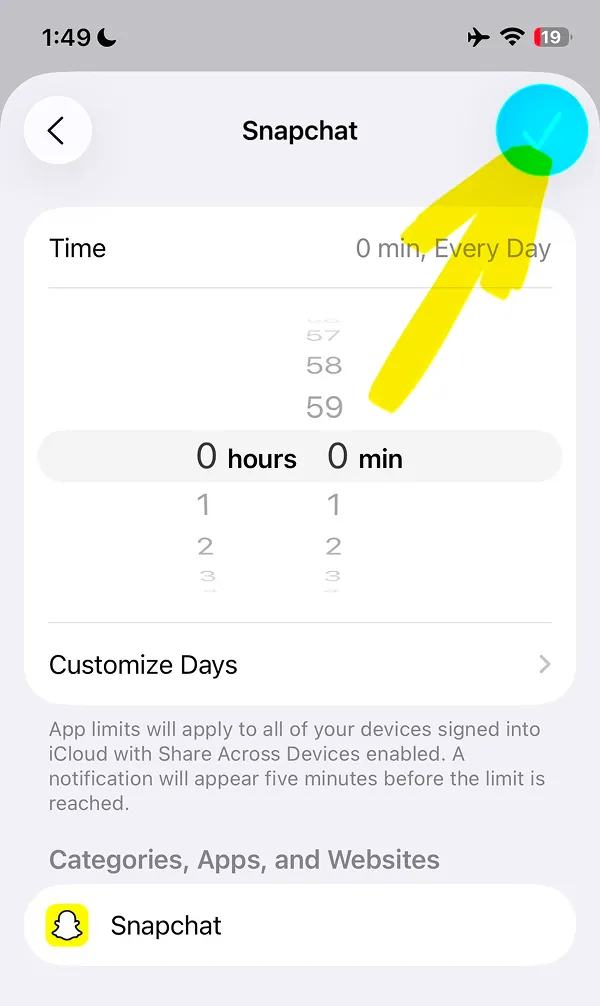
Then tap the blue button with checkbox to apply changes and save the time limit you set.
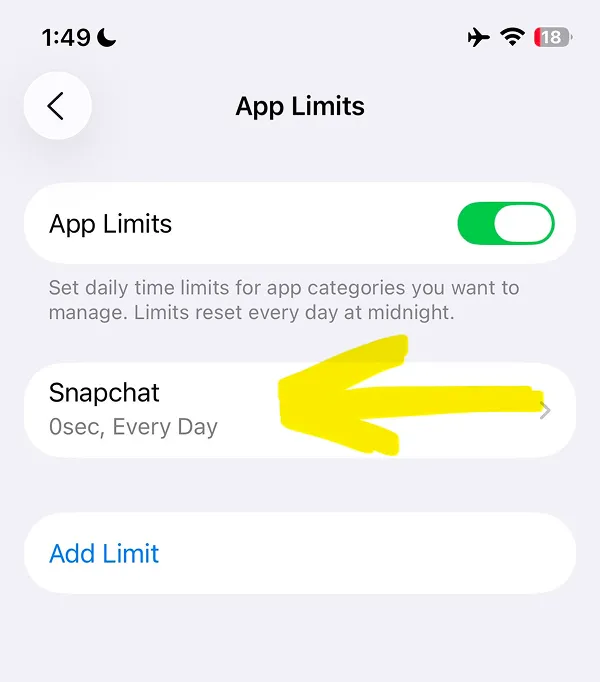
All is done, the selected time will be applied daily and block Snapchat app. Now that you know how to block Snapchat on iPhone, let's explore what happens when blocking is active.
However, there is an issue, the iOS makes it way too easy to stop blocking. Keep reading our guide to know why, and try the ScreenFox app designed to make blocking apps much more difficult to stop.
When daily limits are set, the Snapchat app will be blocked. You will no longer be able to open Snapchat.

The Time limit screen opens instead of the app. However, in our opinion, the issue is with the Ignore Limit button; it allows you to unblock any app in two taps and stop blocking completely.
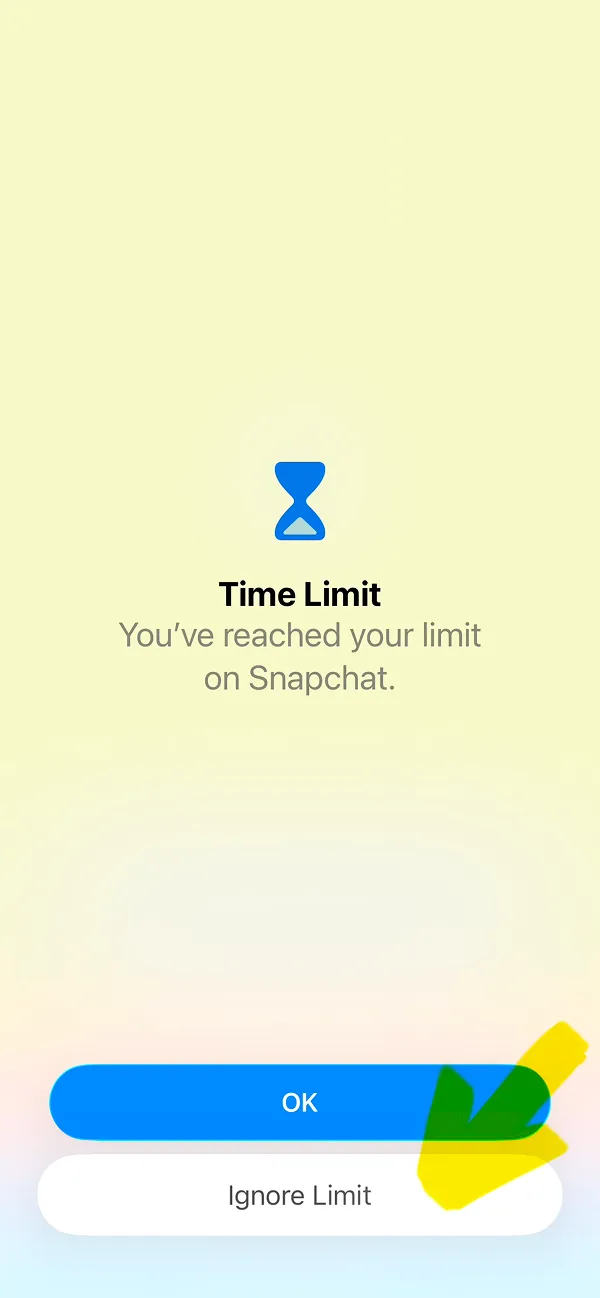
This feature is one of the ways to ignore blocking. When you tap it, the blocking will be stopped up to the full day. The limits will be applied again on the next day.
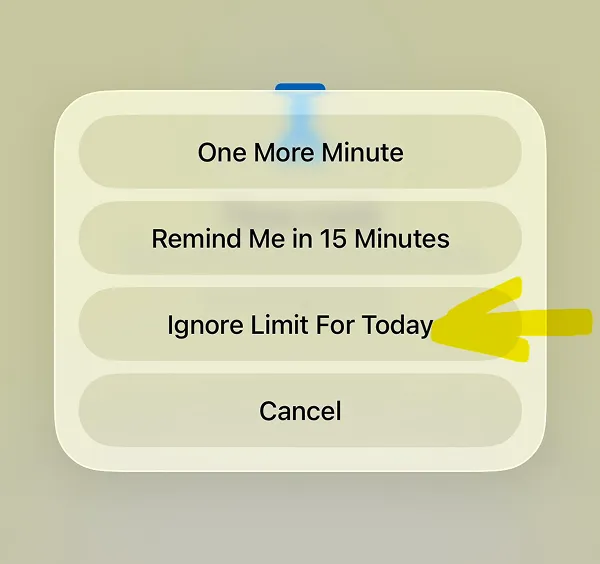
After you select Ignore Limit for Today, the Snapchat will be opened again. With this guide on how to block Snapchat on iPhone, you've mastered iOS Screen Time. To keep you from unblocking any app so easily, we built the ScreenFox app. Download it today and stop doomscrolling with built-in features to make unlocking very difficult and keep you focused.