


If you want to know how to block Facebook on iPhone, read our step-by-step guide. You will know how to do so using built-in screen time feature.
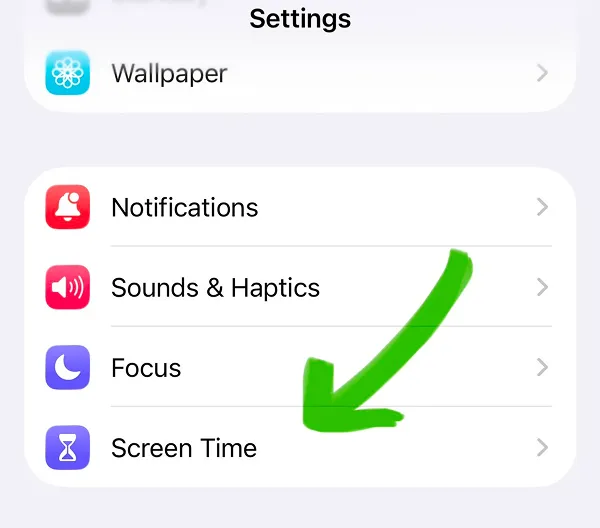
Scroll the page to find the Screen Time option. This option was added after the Display & Brightness settings.

Follow along with our step-by-step video guide to block X on your iPhone. Same instructions, easier to follow along in real-time.
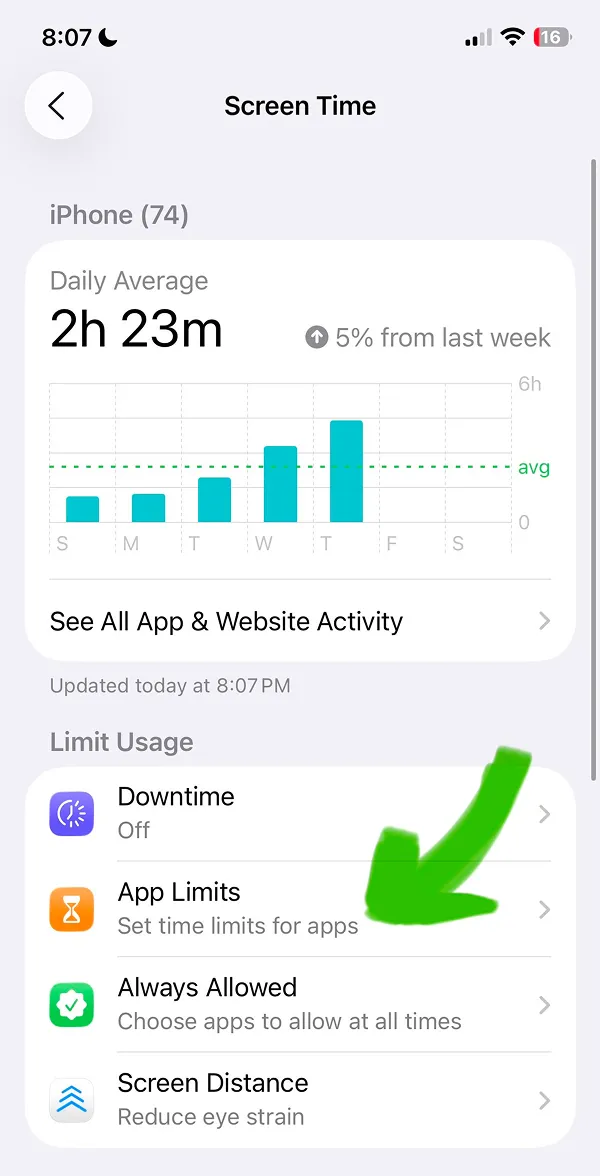
The "App Limits" setting helps you choose what apps to block and set rules.
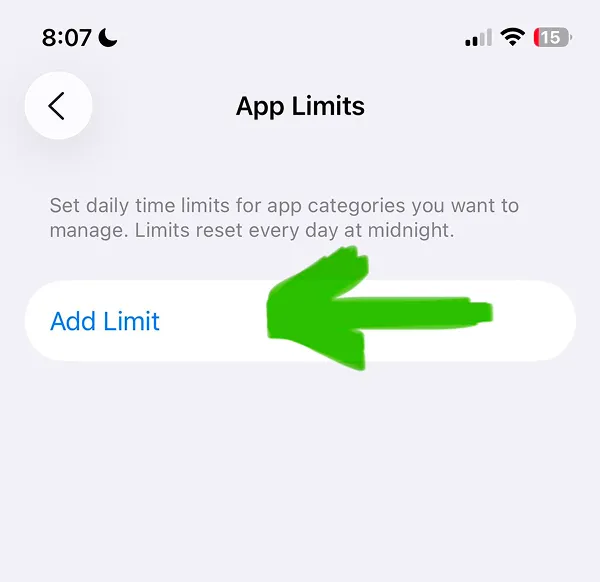
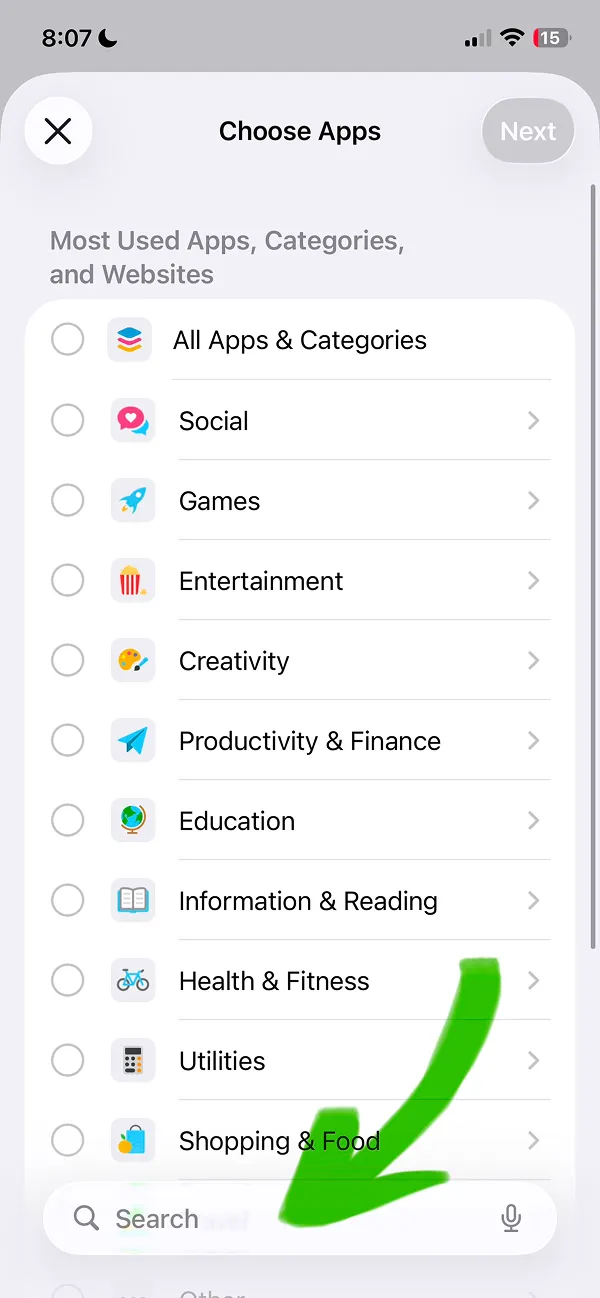
This setting will open the list of all apps installed on your iPhone or iPad.
Tap the search icon where the arrow shows and type the Facebook app for a quick search. This article can help you to know how to block any social media app on your iPhone.
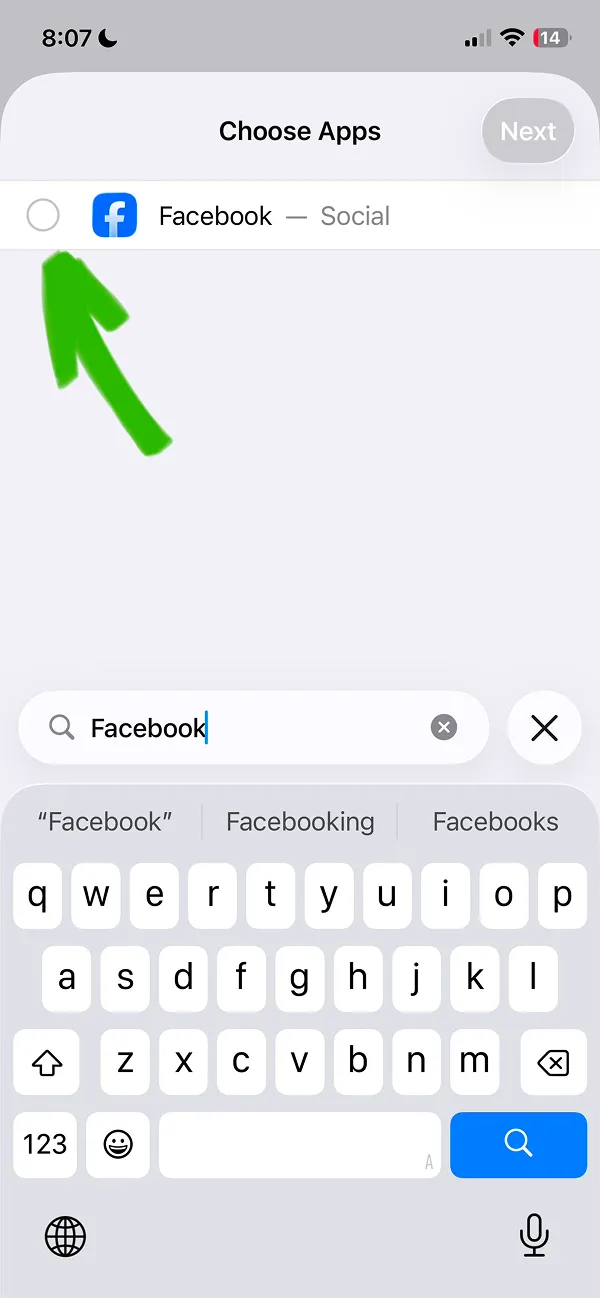
Tap the circle icon on the left from Facebook app name to select the app.
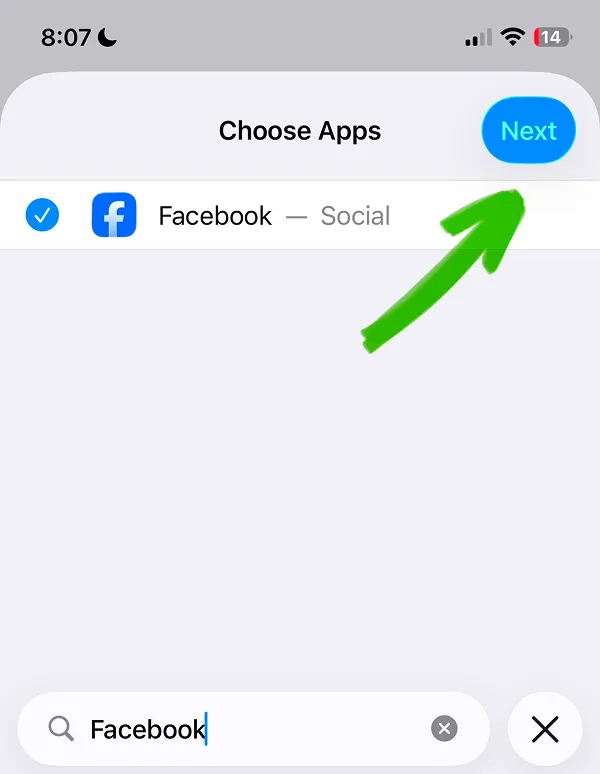
Tap the blue Next button where the arrow shows to save your settings.
To block Facebook app on iPhone you need to set time of use to 0 hours and 0 minutes. You can also choose different time for different days by tapping the "Customize Days" button or set the same time for each day.
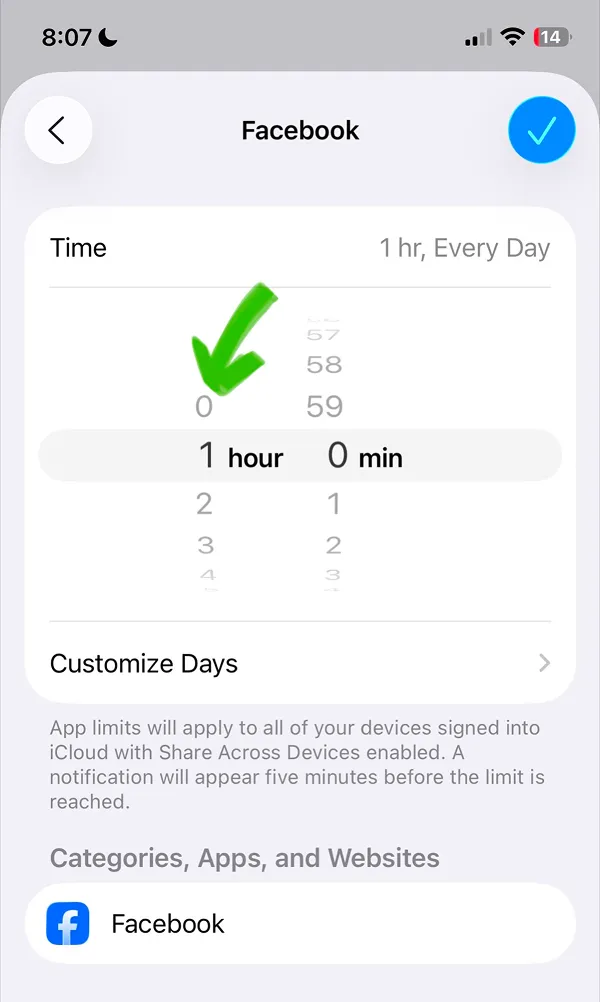
Next, tap the blue circle button with the Checkbox icon to apply changes and block Facebook app.
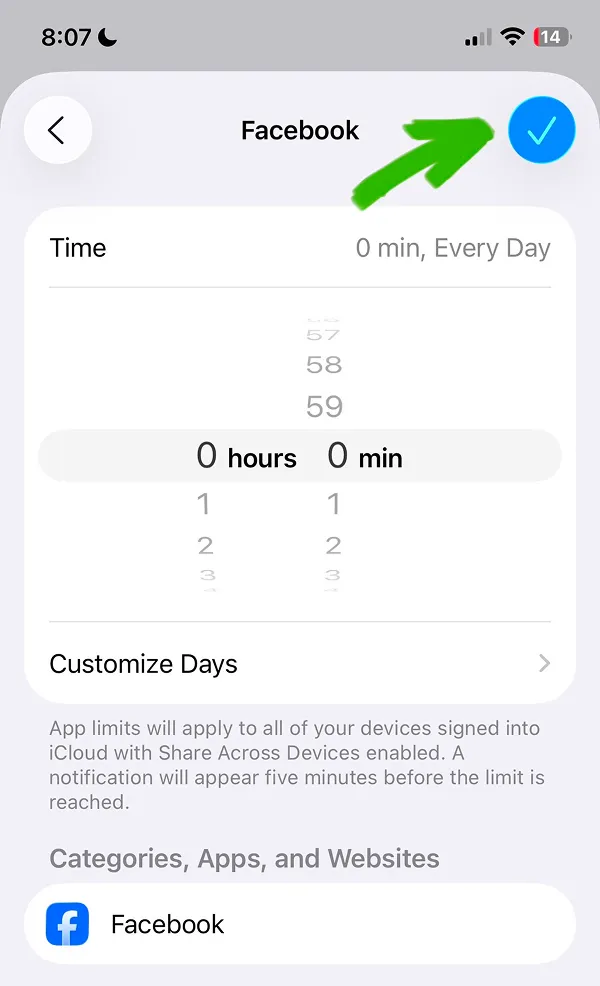
Now you have added an App Limit for Facebook app. Each time you will try to open Facebook on iPhone, iOS will block the app.
Important tip: the iOS blocking is very easy to stop. Keep reading our guide to know how to better block Facebook app.
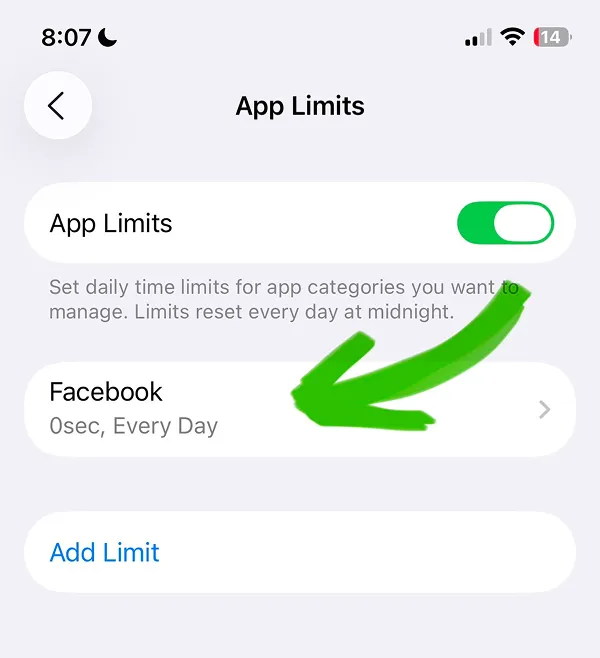
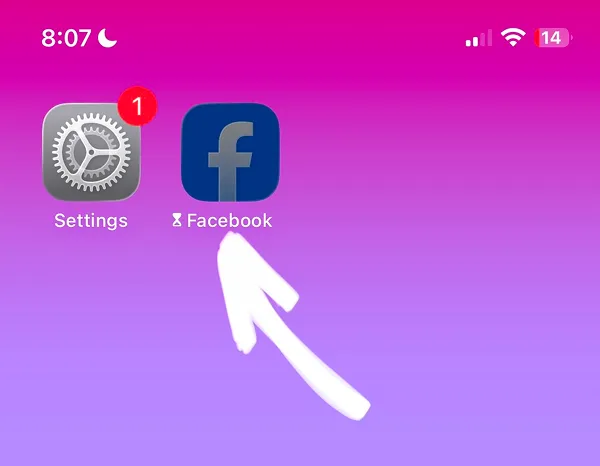
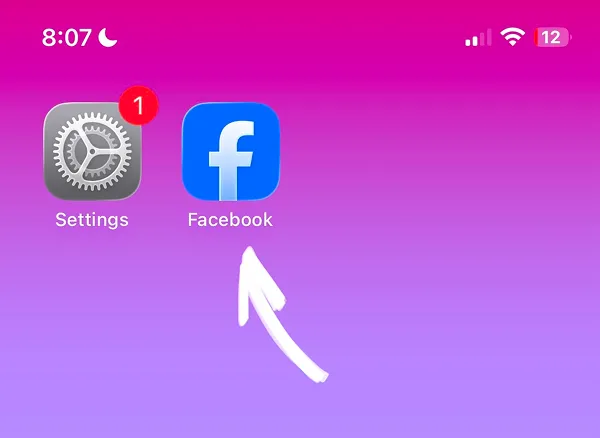
Home screenWhen Facebook is blocked, the app icon will be disabled and the screen time icon will be shown next to the app name.
When you try to open Facebook, iOS will show the Time limit screen instead of opening the app. The main issue is the "Ignore limit" button, by design the Screen time allows you easily bypass the blocking. Keep reading to know what is the alternative solution.
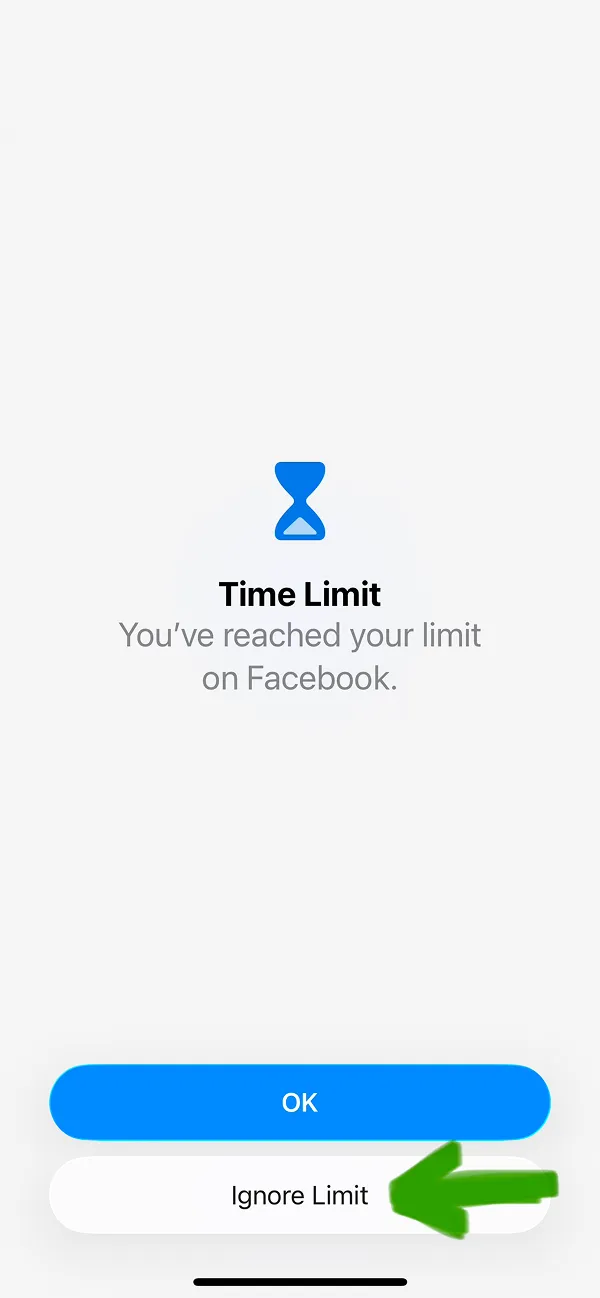
To unblock the Facebook app, tap "Ignore Limit for Today" button. This feature will allow you to ignore blocking for one day or select a different option.
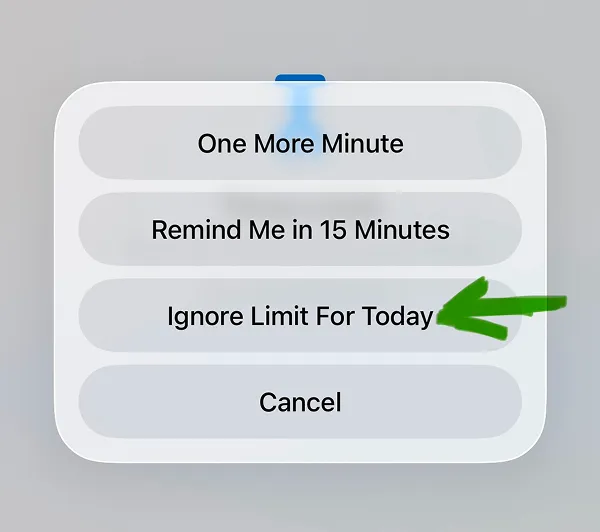
After you ignore the limit for one day, the Facebook app is working again and you can open it. The next day the Screen time limits will be enabled once again.
This is it! Now you know how to block Facebook on iPhone with built-in iOS Screen time feature. Keep reading this article to know how to block Instagram app on iPhone.